Depending on the configured Wide Area Network (WAN) settings, it may be beneficial to manually failover to a backup Internet Service Provider (ISP) connection. Some cases may be:
- The primary connection is unstable, causing continuous disruptive failovers and failbacks.
- The primary connection is degraded, but has not reached the configured threshold to failover.
- The network is using first-active WAN settings (see Firewalls > WAN Configuration).
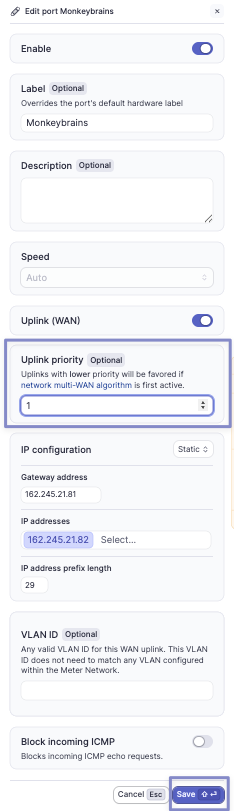
This can be done by changing the 'uplink priority' values on the WAN ports.
Understanding The Correct Priority
When no uplink priorities are set (the default), the lowest numbered port will have priority. Setting the uplink priority to '0' on any port will make that port the active ISP connection.
If uplink priorities are set on every WAN port, the lowest uplink priority will become the active ISP connection.
Steps to Manually Failover
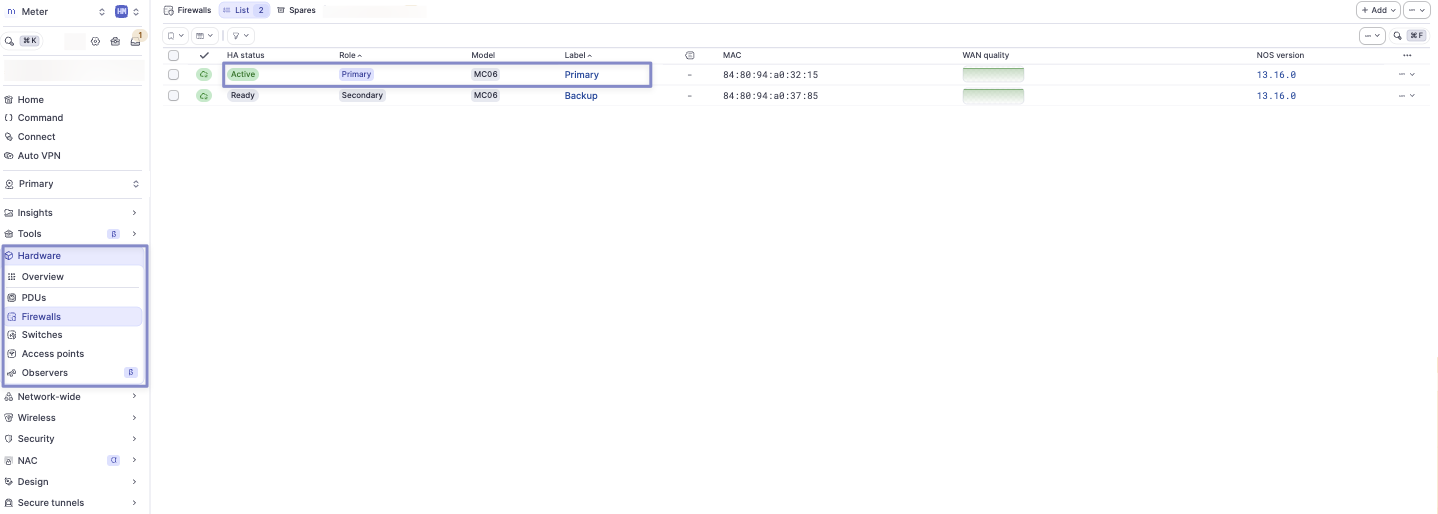
- In the Dashboard, navigate to Hardware > Firewalls and click on the currently active firewall.
- Click on the 'Ports' tab.
- Identify the WAN ports. These are denoted with the Uplink symbol, ↑. The ports will also typically be labeled with the ISP connection name if installed by Meter.
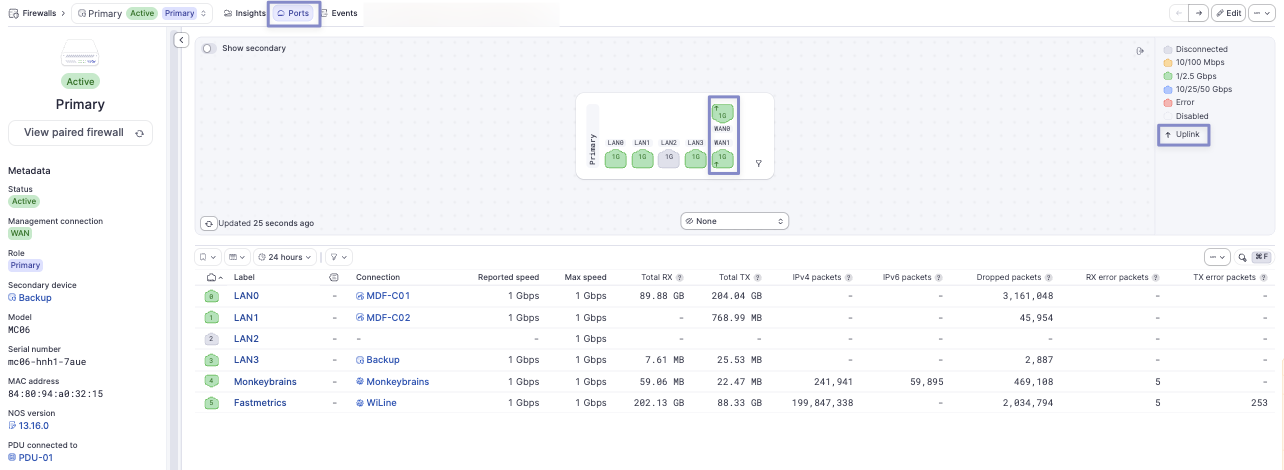
- Click on the ISP connection you would like to failover to and then click 'Edit'.
- Set the uplink priority, then click 'Save'.
How to Block ICMP Echo Requests on WAN Interfaces?
Blocking incoming ICMP echo requests (pings) on a WAN interface prevents devices on the public internet from probing your WAN IP, reducing its visibility to outside scans.
All firewall WANs block incoming ICMP requests (pings) by default, which prevents devices on the public internet from probing your WAN IP. If you see that a WAN port on your network is not blocking them, follow the steps below to enable it.
When this toggle is enabled on any WAN, a default security rule is created for it. This rule is visible in the Rules list (Firewall > ACLs) when 'Show default rules' is toggled on.
To enable or disable ICMP blocking on a WAN port:
- Navigate to Hardware > Firewalls and click on the firewall.
- Click on the 'Ports' tab.
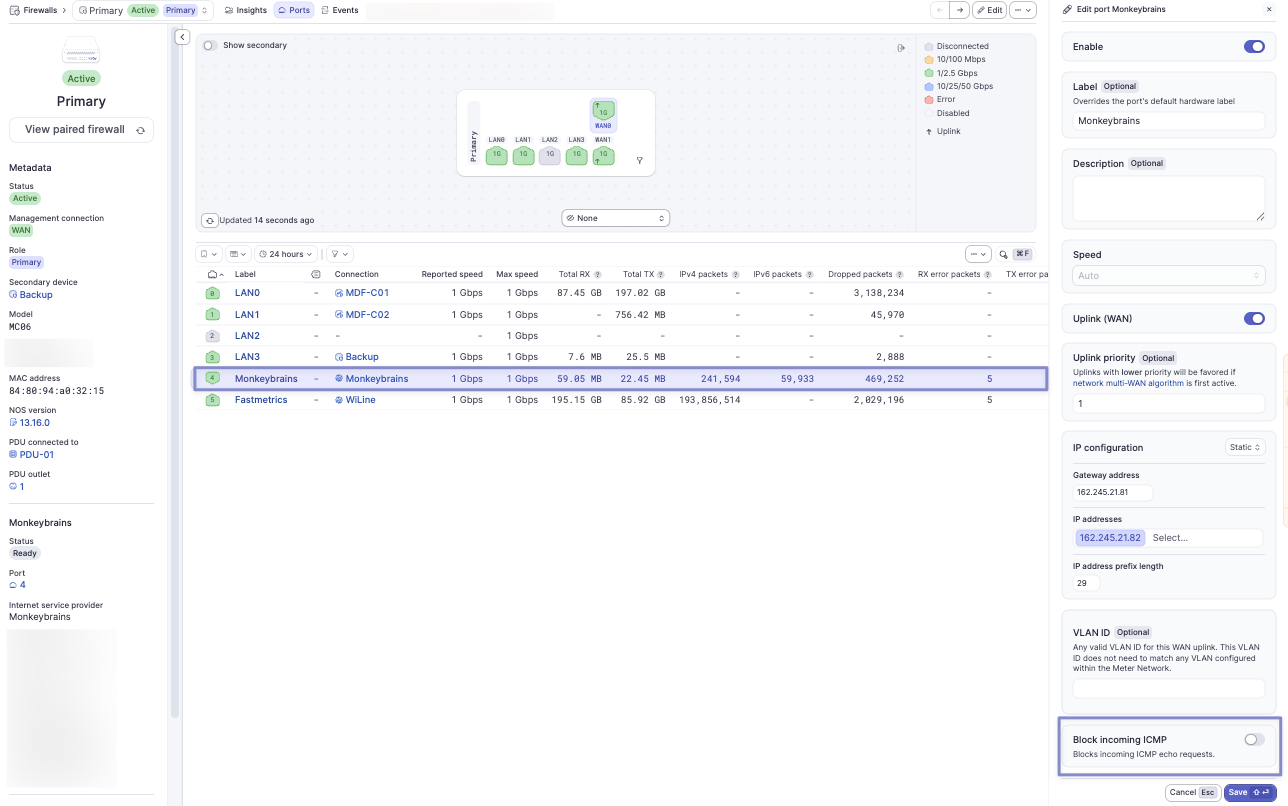
- Identify the WAN port (denoted with the Uplink symbol), then click it.
- Click 'Edit' in the top-right corner.
- Toggle 'Block incoming ICMP' on or off, then click 'Save'.
If you have any questions or need assistance, please don't hesitate to reach out to Meter Support.