Who can modify this feature?
- Partner
- Company/Network Admins with write and read access
- Meter Support
Overview
HA adds resilience to your network by deploying a pair of Meter Firewalls. If your primary Firewall experiences a hardware issue, a secondary backup Firewall automatically takes over to minimize downtime.
How high availability works
HA pairs consist of a primary and a backup Firewall connected directly to each other and your network.
- Constant monitoring - The primary and backup Firewalls constantly monitor each other's status via a dedicated connection
- Automatic failover - If the backup Firewall detects a problem with the primary (like a hardware failure or unresponsiveness), it automatically assumes control of network operations
- Configuration sync - The backup Firewall maintains a real-time copy of the primary's configuration. This ensures a smooth transition without needing manual reconfiguration during a failover event
Monitoring HA status
You can easily check the status of your HA pair:
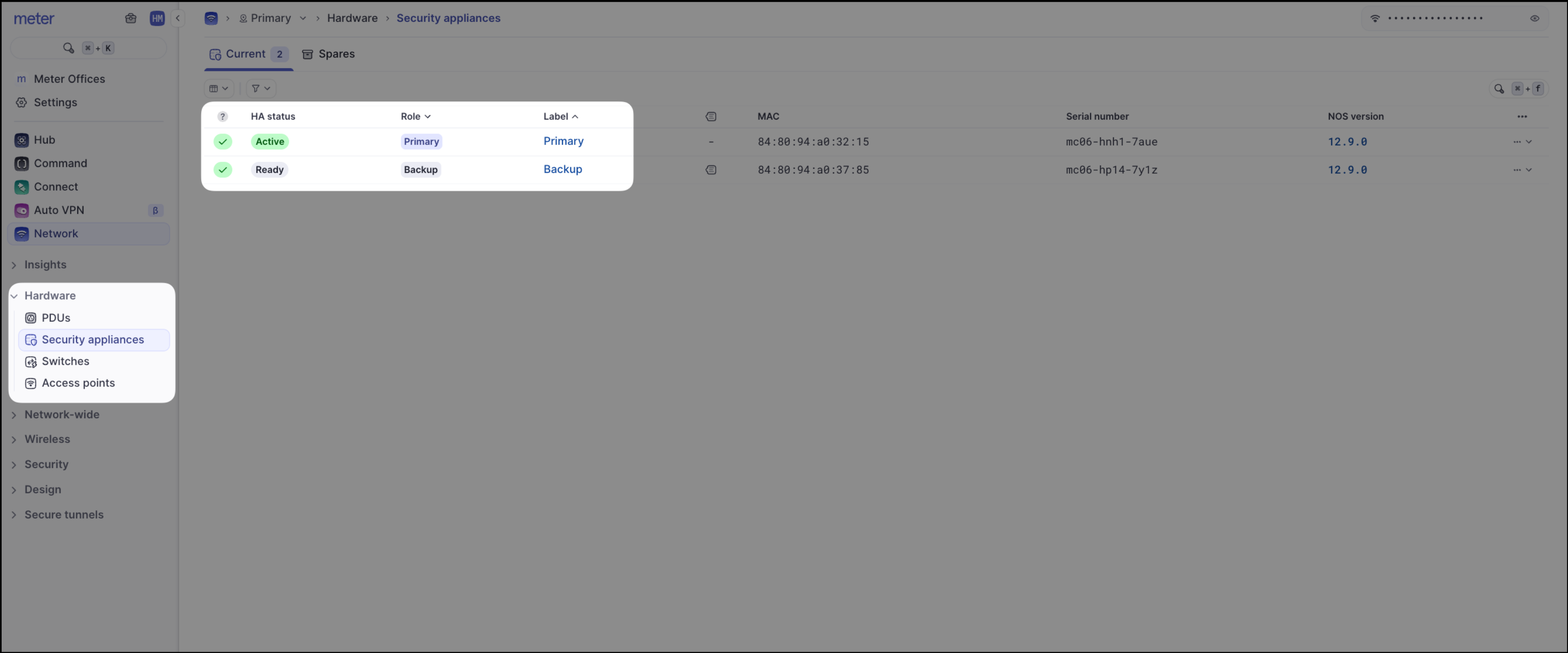
- Firewalls page - Navigate to Hardware > Firewalls. You will see status indicators for each appliance, showing which is Active (Primary) and which is Ready (Backup)
- Event logs - Failover events are recorded in the logs. Navigate to Logs > Events to view details of any HA transitions
Setup and configuration
While Meter configures HA, you can view the settings in your Meter Dashboard:
- Log in to dashboard.meter.com
- Navigate to Hardware > Firewalls
- Select the primary appliance
- In the Actions menu (usually top-right), you will see an option like "Edit high availability" (depending on permissions and setup status)
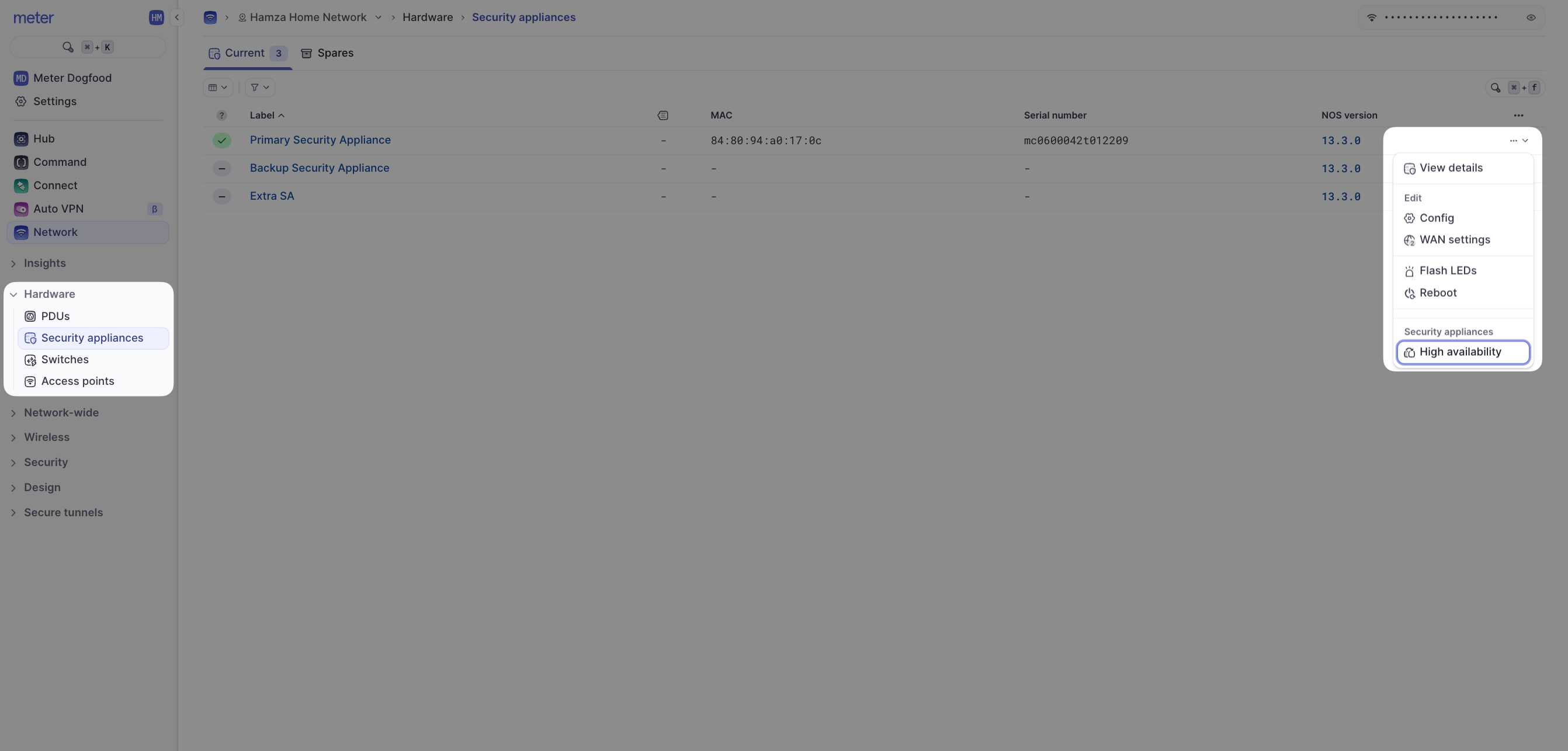
This panel displays the HA configuration details:
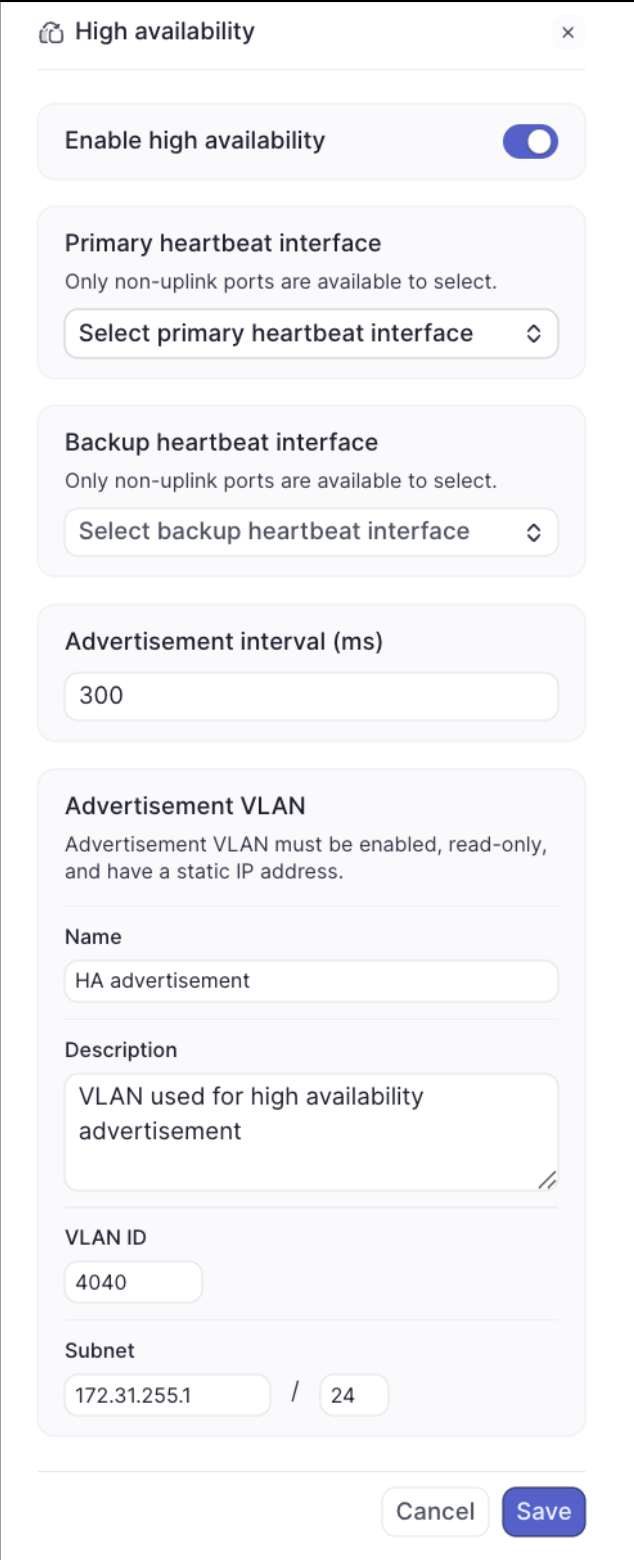
Configuration options
| Setting | Description |
|---|---|
| Enable high availability | Shows if HA is active (Toggle ON) |
| Primary interface | The specific LAN port on the primary Firewall used for the direct HA link |
| Backup interface | The corresponding LAN port on the backup Firewall for the direct HA link |
| Advertisement interval (ms) | How frequently (in milliseconds) the backup checks the primary's status. Default is typically 300ms |
| Advertisement VLAN | The dedicated network segment (VLAN) used for communication between the Firewalls. Meter usually creates this automatically during setup |
Once enabled, you can see the status of the Firewalls on the Firewalls page.
Requirements for HA
To enable HA, your network setup needs:
- Two Meter Firewalls - A primary and a secondary (backup) appliance
- Independent ISP uplinks - Each Firewall requires its own connection to an Internet Service Provider. This ensures that the failure of one ISP link doesn't bring down both appliances
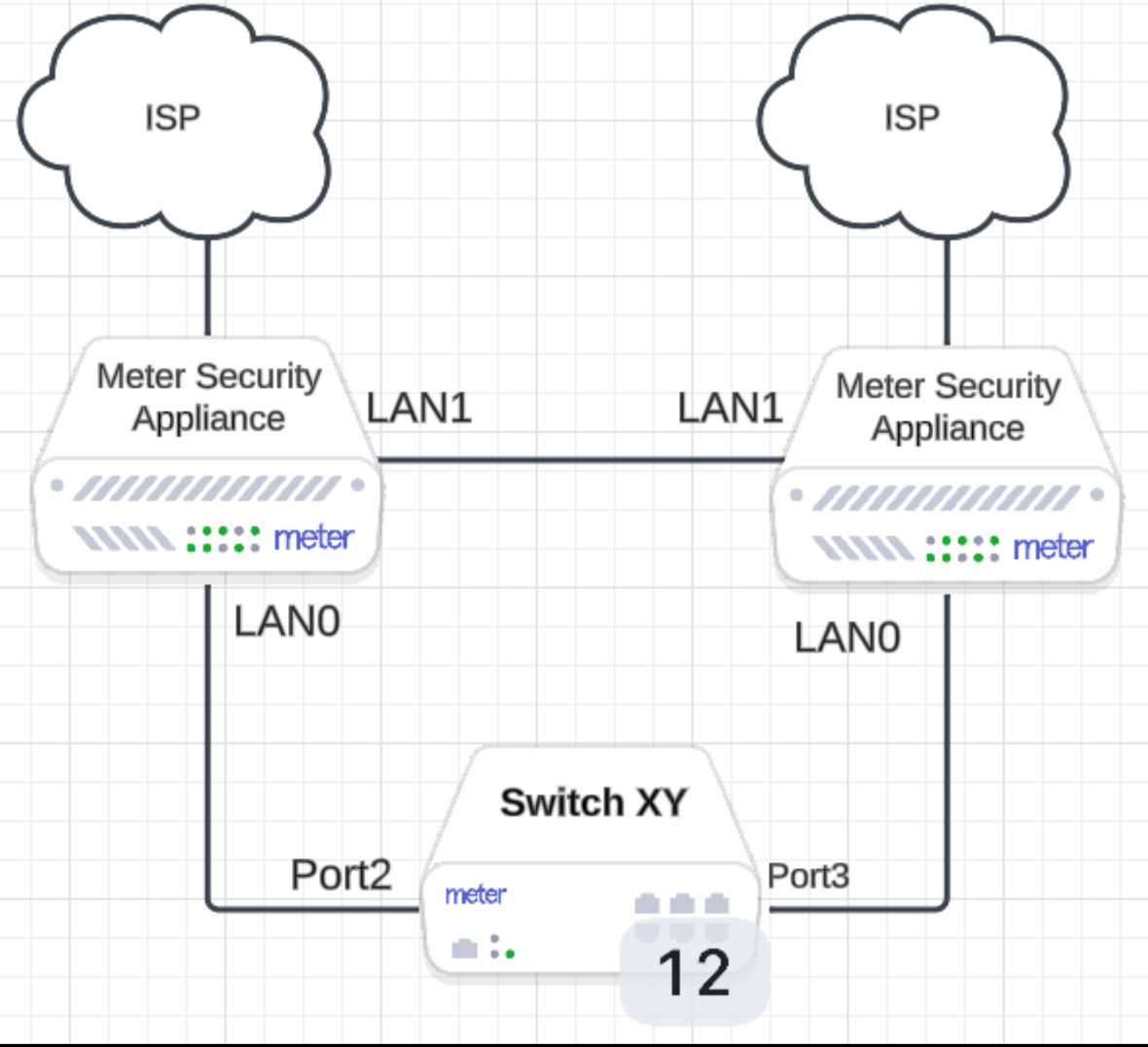
- Network connection - Both Firewalls connect to your core network switch, and directly to each other
Here's a typical connection diagram:
Need help?
If you run into any issues or have questions, please reach out to our Support Engineering team by opening a ticket via the Dashboard: https://dashboard.meter.com/support
Last updated by Meter Support Engineering on 01/23/2026