Overview
This guide walks you through connecting Slack to Meter Dashboard to receive real-time network alerts and notifications in your Slack workspace.
Prerequisites
- Slack workspace user with admin permissions to add apps and membership in the desired alerting channel
- Meter Dashboard access with Network Admin, Company Admin, or Partner permissions
Setup
Create a Slack channel.
- In Slack, create a new channel for Meter alerts (e.g.,
#network-alerts) - Note the channel name for later
Connect Slack in Dashboard
-
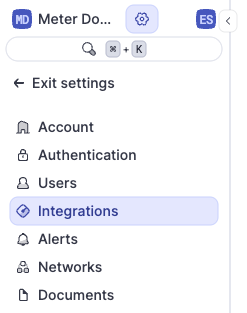
In Meter Dashboard, navigate to Settings > Integrations > Services
-
Click Connect next to Slack in the services tab.

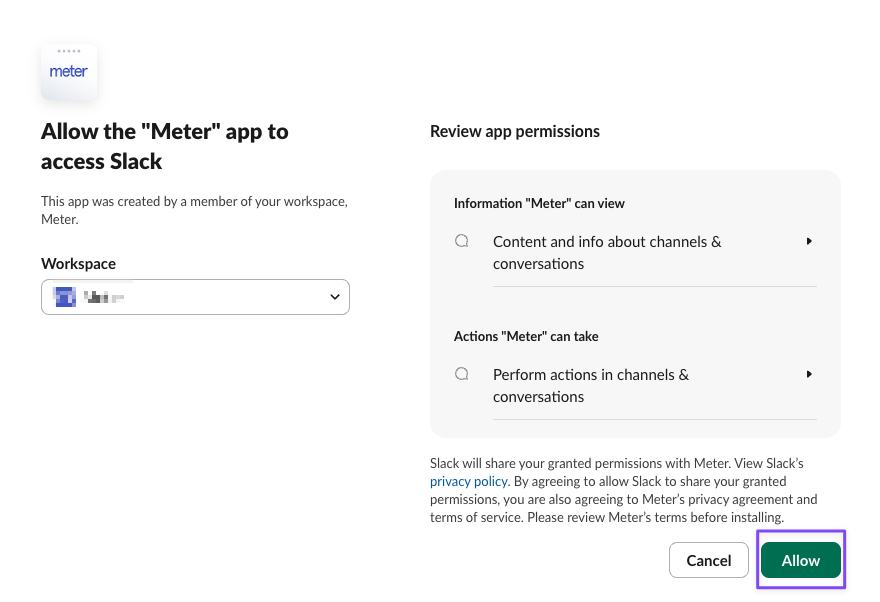
- Sign-in and authorize the Meter App to access your Slack workspace
- Navigate to Settings > Integrations > Receivers and click Add Receiver.
- Add a label. Then, add a receiver with your Slack channel.
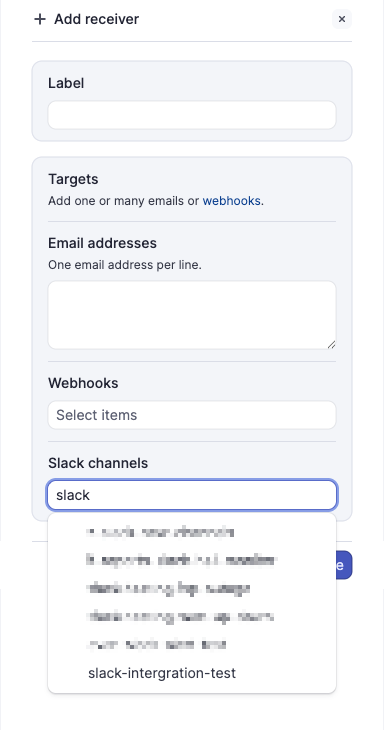
- Click Save
Configure notification preferences
In the Alerts tab, you can add specific alerts and then add your Slack Channel as the receiver following this guide.
Troubleshooting
Slack Workspaces with Large Channel Counts
Large Slack workspaces (2,000+ channels) may encounter the following issues:
- All channels do not display in the list when adding receivers
- An unrecognized channel name appears in the list when adding receivers
- Slack no longer appears as a connected integration in Settings > Integrations > Services
To address this, Meter fetches only channels where the authorizing user is a member. If you encounter any of the above, disconnect and reconnect the Slack integration.
Need help?
If you run into any issues or have questions, please reach out to our Support Engineering team by opening a ticket via the Dashboard: https://dashboard.meter.com/support
Last updated by Meter Support Engineering on 01/14/2026