Overview
The AP link speed alert triggers when any access point on the network negotiates a link speed below 1 Gbps (e.g., 100 Mbps or 10 Mbps). This can negatively impact network performance and user experience, particularly in high-traffic environments.
A degraded link speed is typically caused by:
- Faulty or damaged Ethernet cables
- Poor quality or incompatible switch ports
- Environmental interference near cables or ports
Prerequisites
- Dashboard access with Admin or Network Admin permissions
- Alert receivers configured
Configuring the alert
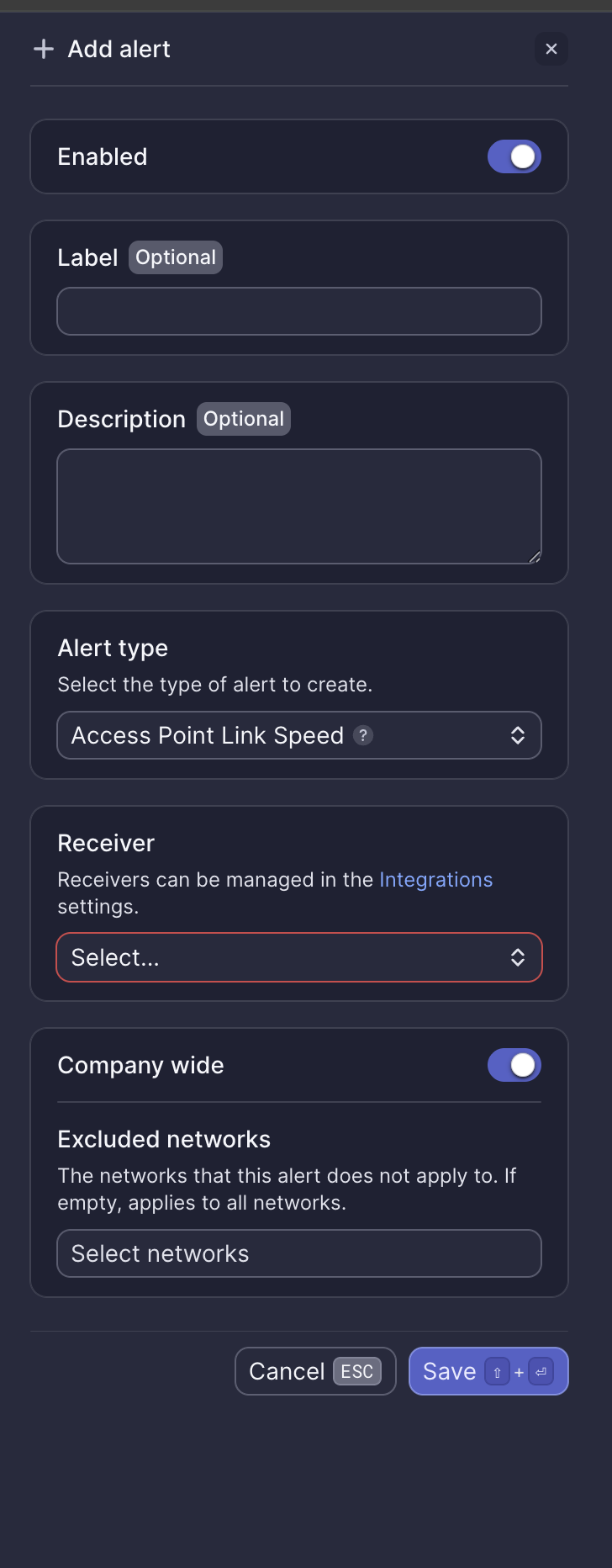
Configuration fields
| Field | Required | Description |
|---|---|---|
| Enabled | Yes | Toggle to activate or deactivate the alert (default: on) |
| Label | No | Custom name for this alert instance |
| Description | No | Additional notes about this alert |
| Alert type | Yes | Select "Access Point Link Speed" |
| Receiver | Yes | Select from configured receivers |
| Company wide | Yes | Apply to all networks or select specific networks |
| Excluded networks | No | Networks to exclude when Company wide is enabled |
Webhook event
This alert corresponds to the ALERT_AP_LINK_SPEED webhook event. See AP link speed webhook payload for integration details.
What to do when you receive this alert
Meter Support will proactively reach out shortly after this alert fires. If you haven't received an email from Support, open a ticket via the Dashboard.
Check link speed on the Dashboard
- Navigate to Hardware > Access Points
- Select the impacted AP identified in the alert
- Under Active connection, verify the negotiated link speed
- If it shows 100 Mbps or less, it confirms the alert condition
Inspect cabling and switch port
- Ensure the cabling is properly secured on both the AP and switch ends
- Reseat both ends of the cable
- Conduct a cable test on the switch port where the AP is connected
If the cable test fails or the AP continues to report 100 Mbps or less link speed, contact Meter Support for further assistance.
Need help?
If you run into any issues or have questions, please reach out to our Support Engineering team by opening a ticket via the Dashboard: https://dashboard.meter.com/support
Last updated by Meter Support Engineering on 01/23/2026