Overview
The WAN down alert fires if the Meter Firewall has no active WAN connection and has failed over to management LTE for more than five minutes. This means that no device on the Meter network can reach the internet.
Prerequisites
- Dashboard access with Admin or Network Admin permissions
- Alert receivers configured
Configuring the alert
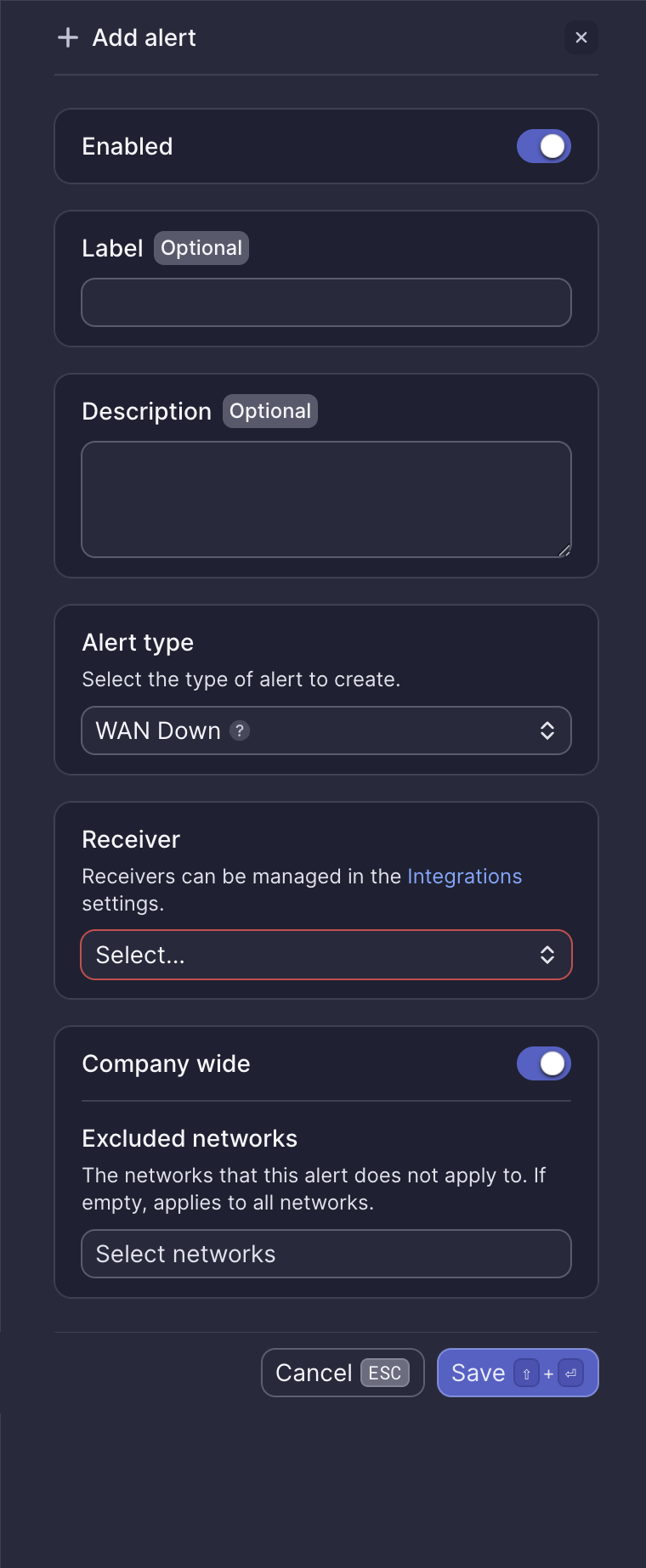
Configuration fields
| Field | Required | Description |
|---|---|---|
| Enabled | Yes | Toggle to activate or deactivate the alert (default: on) |
| Label | No | Custom name for this alert instance |
| Description | No | Additional notes about this alert |
| Alert type | Yes | Select "WAN Down" |
| Receiver | Yes | Select from configured receivers |
| Company wide | Yes | Apply to all networks or select specific networks |
| Excluded networks | No | Networks to exclude when Company wide is enabled |
Webhook event
This alert corresponds to the ALERT_WAN_DOWN webhook event. See WAN down webhook payload for integration details.
What to do when you receive this alert
Meter Support will proactively reach out shortly after this alert fires. If you haven't received an email from Support, open a ticket via the Dashboard.
Check for power and physical connections
- Log into the Dashboard
- Navigate to Hardware > Firewalls
- Select the Primary Firewall
- Go to the Ports tab
Ensure that the WAN ports show an active link. A port has an active link if it is colored yellow, green, or blue. WAN ports have an upward-pointing arrow indicating they are WAN ports.
To see how many ISP connections a site has, navigate to Network-wide > ISPs.
If no ports are lit up, the site could be experiencing a power outage with the Meter Firewall being powered by a UPS, or the ISP equipment was disconnected or powered off. Meter Support will work with an on-site contact via phone or Zoom to verify.
Ping the gateway
If there is a link and the ISP connection uses a static IP address, try pinging the ISP gateway address from a device on the Meter LAN or Wi-Fi network, or via the Dashboard. The IP address is found on the Insights tab of the Firewall.
If the gateway is reachable but an address beyond it (such as 8.8.8.8) is not, this indicates the ISP is experiencing an outage.
Contact the ISP
If Meter handles your ISP billing and support, we will reach out to the ISP on your behalf and provide updates.
Need help?
If you run into any issues or have questions, please reach out to our Support Engineering team by opening a ticket via the Dashboard: https://dashboard.meter.com/support
Last updated by Meter Support Engineering on 01/23/2026