Overview
The AP client count alert triggers when the number of wireless clients connected to an individual access point exceeds a preset threshold. This typically indicates that the AP may be overloaded, which could lead to degraded wireless performance such as slowness, packet loss, or intermittent connectivity.
Prerequisites
- Dashboard access with Admin or Network Admin permissions
- Alert receivers configured
Configuring the alert
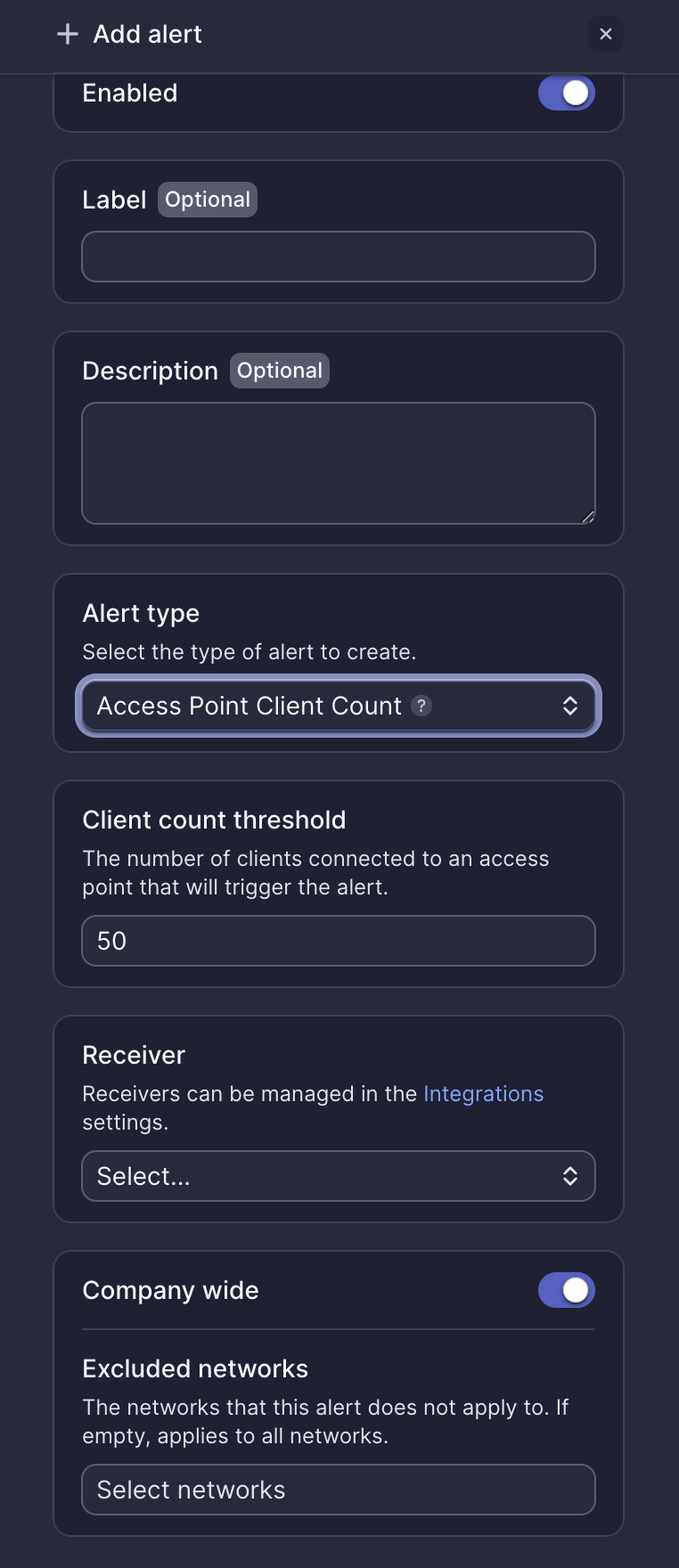
Configuration fields
| Field | Required | Description |
|---|---|---|
| Enabled | Yes | Toggle to activate or deactivate the alert (default: on) |
| Label | No | Custom name for this alert instance |
| Description | No | Additional notes about this alert |
| Alert type | Yes | Select "Access Point Client Count" |
| Client count threshold | Yes | Number of connected clients that triggers the alert (default: 50) |
| Receiver | Yes | Select from configured receivers |
| Company wide | Yes | Apply to all networks or select specific networks |
| Excluded networks | No | Networks to exclude when Company wide is enabled |
Webhook event
This alert corresponds to the ALERT_AP_CLIENT_COUNT webhook event. See AP client count webhook payload for integration details.
What to do when you receive this alert
Meter Support will proactively reach out shortly after this alert fires. If you haven't received an email from Support, open a ticket via the Dashboard.
Review AP client count and signal coverage
- Log into the Dashboard and navigate to Hardware > Access Points
- Select the AP identified in the alert
- Check the Clients tab to see how many users are currently connected
- Review historical usage data to determine if this is a recurring issue
- Check channel utilization and signal strength to determine if the high load is impacting performance
Check for poor client distribution
If several APs are nearby but only one is overloaded, clients may not be distributed properly. Possible causes:
- Clients are connecting to a distant AP due to stronger signal or incorrect roaming behavior
- APs are operating on overlapping channels
Meter Support can help adjust AP radio settings or recommend configuration changes to improve distribution.
Need help?
If you run into any issues or have questions, please reach out to our Support Engineering team by opening a ticket via the Dashboard: https://dashboard.meter.com/support
Last updated by Meter Support Engineering on 01/23/2026