Port blocked
Overview
The port blocked alert triggers when a switch port is blocked due to a security violation, such as a loop detected by STP or a MAC address violation.
Prerequisites
- Dashboard access with Admin or Network Admin permissions
- Alert receivers configured
Configuring the alert
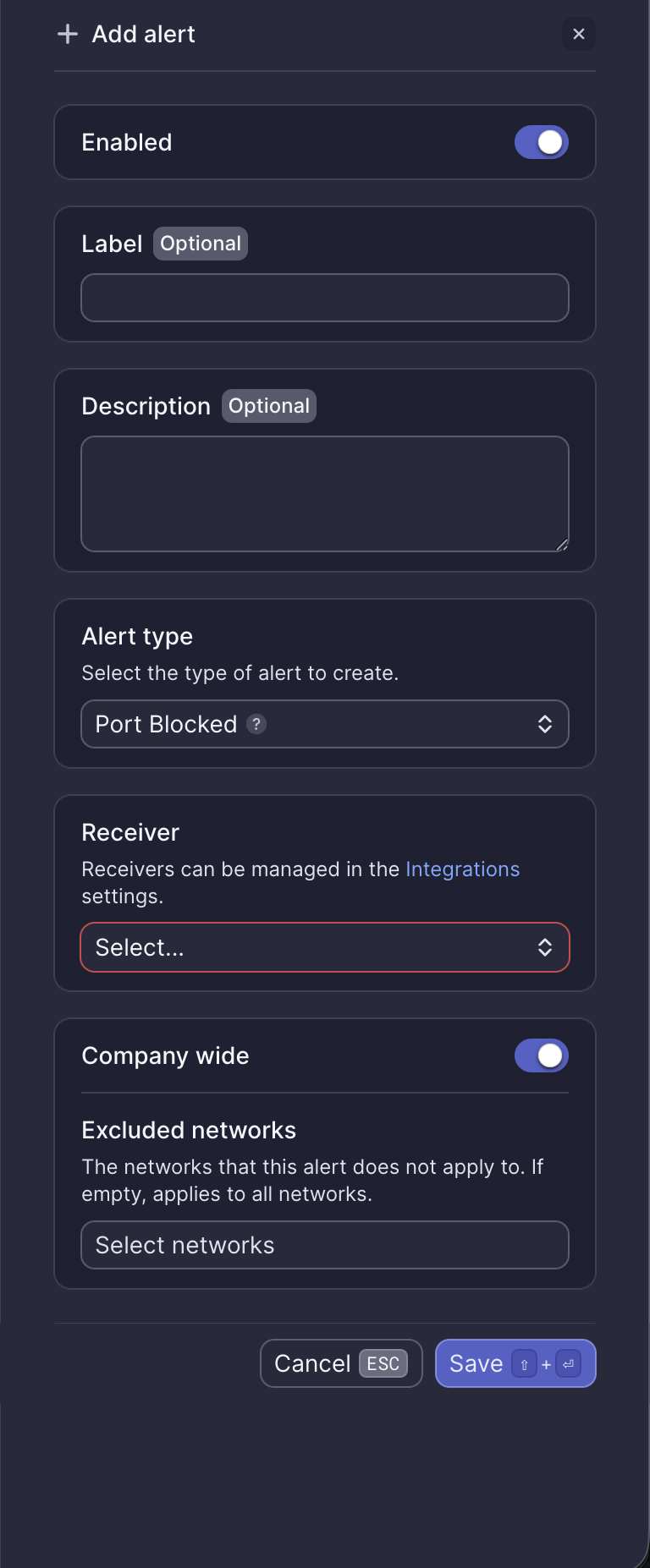
Configuration fields
| Field | Required | Description |
|---|---|---|
| Enabled | Yes | Toggle to activate or deactivate the alert (default: on) |
| Label | No | Custom name for this alert instance |
| Description | No | Additional notes about this alert |
| Alert type | Yes | Select "Port Blocked" |
| Receiver | Yes | Select from configured receivers |
| Company wide | Yes | Apply to all networks or select specific networks |
| Excluded networks | No | Networks to exclude when Company wide is enabled |
Webhook event
This alert corresponds to the ALERT_PORT_BLOCKED webhook event. See Port blocked webhook payload for integration details.
What to do when you receive this alert
- Log into the Dashboard and navigate to Hardware > Switches
- Select the switch identified in the alert
- Find the blocked port and review its status
- Check for network loops or unauthorized devices
- Contact Meter Support if you need assistance unblocking the port
Related resources
Need help?
If you run into any issues or have questions, please reach out to our Support Engineering team by opening a ticket via the Dashboard: https://dashboard.meter.com/support
Last updated by Meter Support Engineering on 01/23/2026