Overview
An IP conflict alert means the Meter Firewall can see more than one device with the same IP address on the network. Since every IP should be unique, devices with the same IP address can experience connectivity issues.
Prerequisites
- Dashboard access with Admin or Network Admin permissions
- Alert receivers configured
Configuring the alert
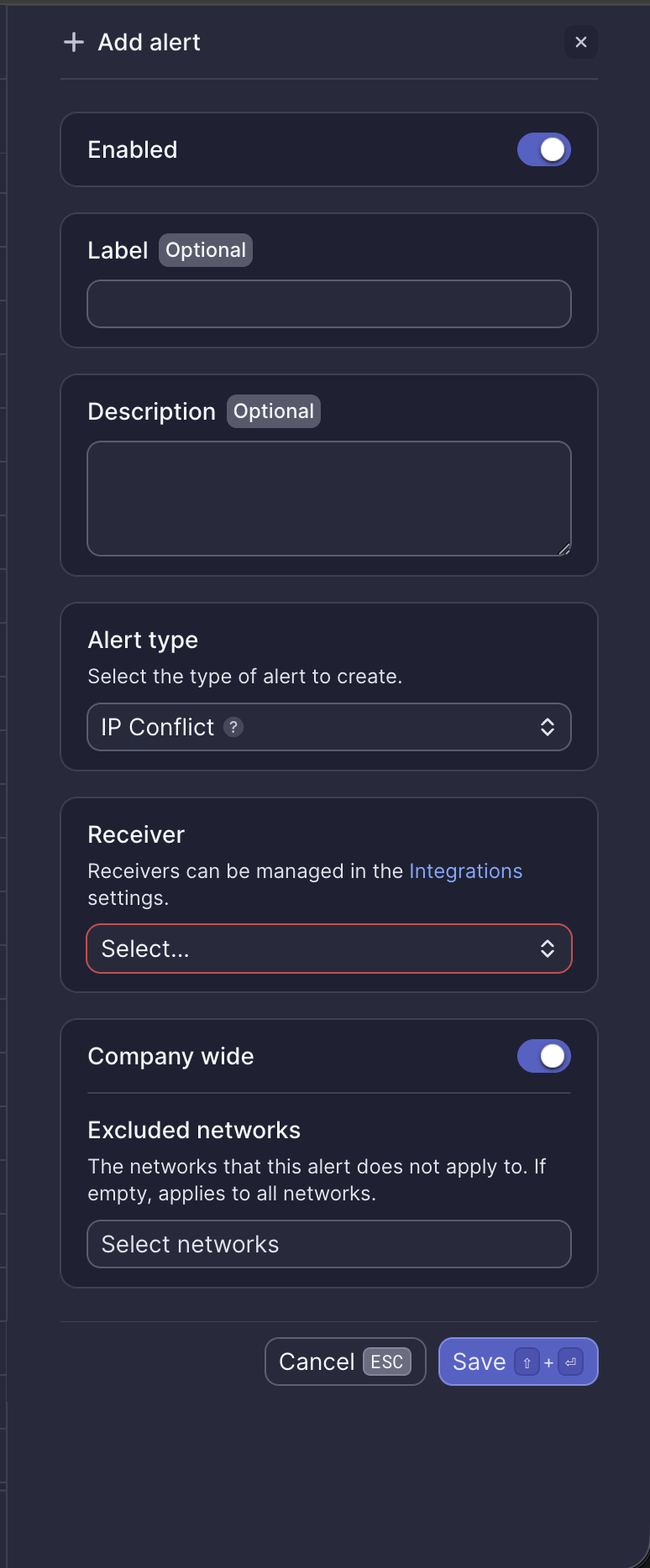
Configuration fields
| Field | Required | Description |
|---|---|---|
| Enabled | Yes | Toggle to activate or deactivate the alert (default: on) |
| Label | No | Custom name for this alert instance |
| Description | No | Additional notes about this alert |
| Alert type | Yes | Select "IP Conflict" |
| Receiver | Yes | Select from configured receivers |
| Company wide | Yes | Apply to all networks or select specific networks |
| Excluded networks | No | Networks to exclude when Company wide is enabled |
Webhook event
This alert corresponds to the ALERT_IP_CONFLICT webhook event. See IP conflict webhook payload for integration details.
What to do when you receive this alert
By default, Meter networks use DHCP to assign IP addresses.
This alert typically fires when a device is using a statically assigned IP address that was also assigned by the DHCP server.
Identify the conflicting devices
- Log into the Dashboard
- Navigate to Insights > Clients
- Use the search bar to search for the IP address
- The clients with identical IPs will appear in the results
Resolve the conflict
Investigate the IP/network settings on the identified devices to ensure they are not using a static IP address. Either:
- Change the static IP to one outside the DHCP range
- Set the device to use DHCP
- Create a DHCP reservation for the device
Need help?
If you run into any issues or have questions, please reach out to our Support Engineering team by opening a ticket via the Dashboard: https://dashboard.meter.com/support
Last updated by Meter Support Engineering on 01/23/2026