Overview
A device offline alert means the Meter device has not been able to reach the Dashboard for at least five minutes. Typically, devices go offline due to power loss or network configuration issues.
There is a possibility that the device is up and running locally but cannot reach the Dashboard.
Prerequisites
- Dashboard access with Admin or Network Admin permissions
- Alert receivers configured
Configuring the alert
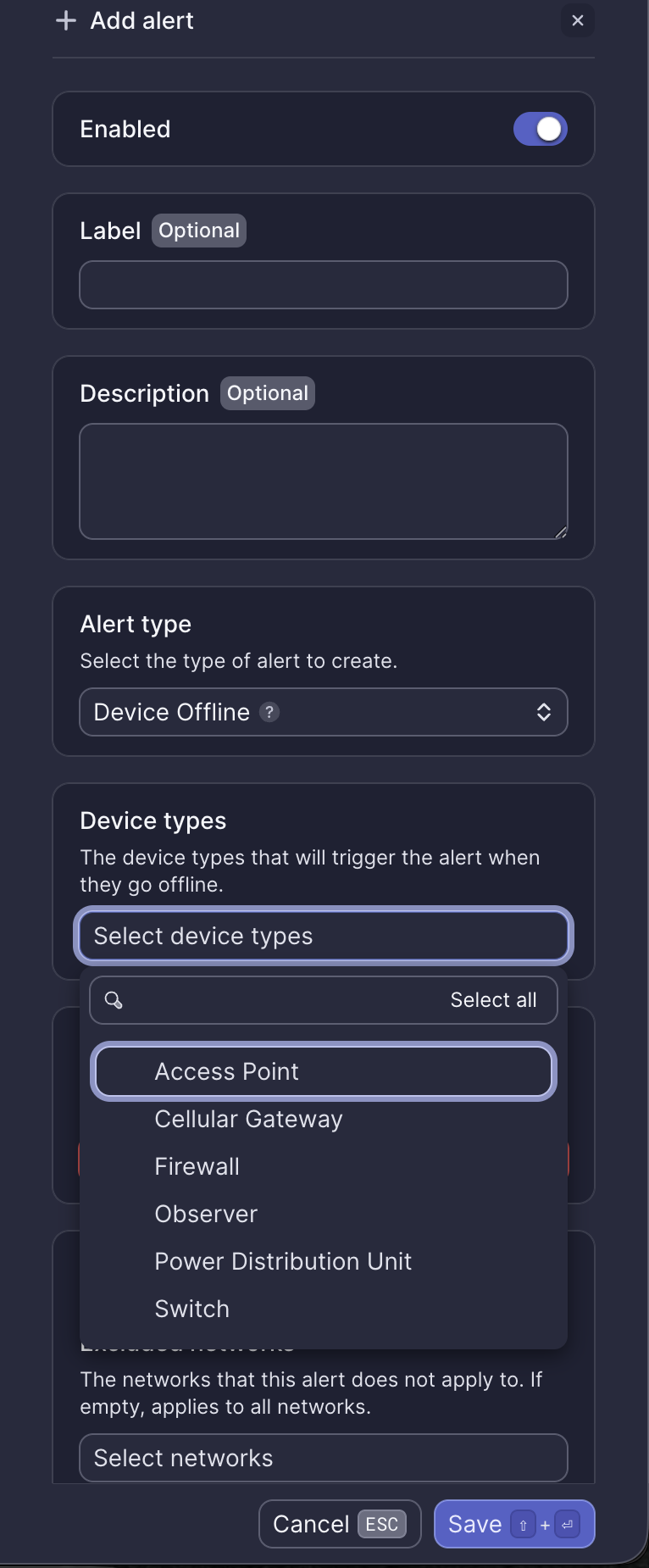
Configuration fields
| Field | Required | Description |
|---|---|---|
| Enabled | Yes | Toggle to activate or deactivate the alert (default: on) |
| Label | No | Custom name for this alert instance |
| Description | No | Additional notes about this alert |
| Alert type | Yes | Select "Device Offline" |
| Device types | Yes | Select which device types trigger the alert |
| Receiver | Yes | Select from configured receivers |
| Company wide | Yes | Apply to all networks or select specific networks |
| Excluded networks | No | Networks to exclude when Company wide is enabled |
Device types options
- Access Point
- Cellular Gateway
- Firewall
- Observer
- Power Distribution Unit
- Switch
Webhook event
This alert corresponds to the ALERT_DEVICE_OFFLINE webhook event. See Device offline webhook payload for integration details.
What to do when you receive this alert
Meter Support will proactively reach out shortly after this alert fires. If you haven't received an email from Support, open a ticket via the Dashboard.
Follow the steps below based on the device type.
Firewall offline
If this alert fires for a Meter Firewall, it has lost all ISP connections and cannot connect to the Dashboard via LTE.
Check for power: Ensure that the front-facing Power LED on the firewall is illuminated.
If no LEDs are illuminated, try a different power source. If power is on, follow the steps in WAN down to troubleshoot ISP connectivity.
Switch offline
Check for power: The switch has multiple status LEDs on the front. If nothing is lit, try a different power source.
Bad trunk port configuration: If a bad configuration was set on a switch trunk link causing the switch to go down, a failsafe will revert the configuration in 15 minutes. Meter device uplinks must be set to trunk native 1.
Hardware reset: If the switch appears powered on and has not reached the Dashboard for more than 15 minutes, use the hardware reset button on the front of the switch (pin reset—use a paperclip or similar).
Access point offline
Bad trunk port configuration: A bad configuration on a switch trunk link can cause the access point to go down. Meter device uplinks must be set to trunk native 1.
Cycle PoE: If the AP appears powered on and the switchport config is set properly, cycle PoE on the connected port using the actions menu on the switchport.
PDU offline
Bad trunk port configuration: A bad configuration on a switch trunk link can cause the PDU to go down. Meter device uplinks must be set to trunk native 1.
Hardware reset: If the PDU appears powered on and has not reached the Dashboard for more than 15 minutes, use the hardware reset button on the front of the device (pin reset—use a paperclip or similar).
Need help?
If you run into any issues or have questions, please reach out to our Support Engineering team by opening a ticket via the Dashboard: https://dashboard.meter.com/support
Last updated by Meter Support Engineering on 01/23/2026