Overview
The DHCP pool exhaustion alert triggers when the percentage of IP addresses assigned by the DHCP server for a VLAN exceeds a configured threshold. This indicates that the DHCP scope is nearing capacity, and new devices may soon be unable to obtain an IP address.
If the DHCP pool runs out of available IP addresses, new devices joining the network will fail to connect, resulting in user disruption. This alert helps prevent downtime by notifying you before exhaustion occurs.
Prerequisites
- Dashboard access with Admin or Network Admin permissions
- Alert receivers configured
Configuring the alert
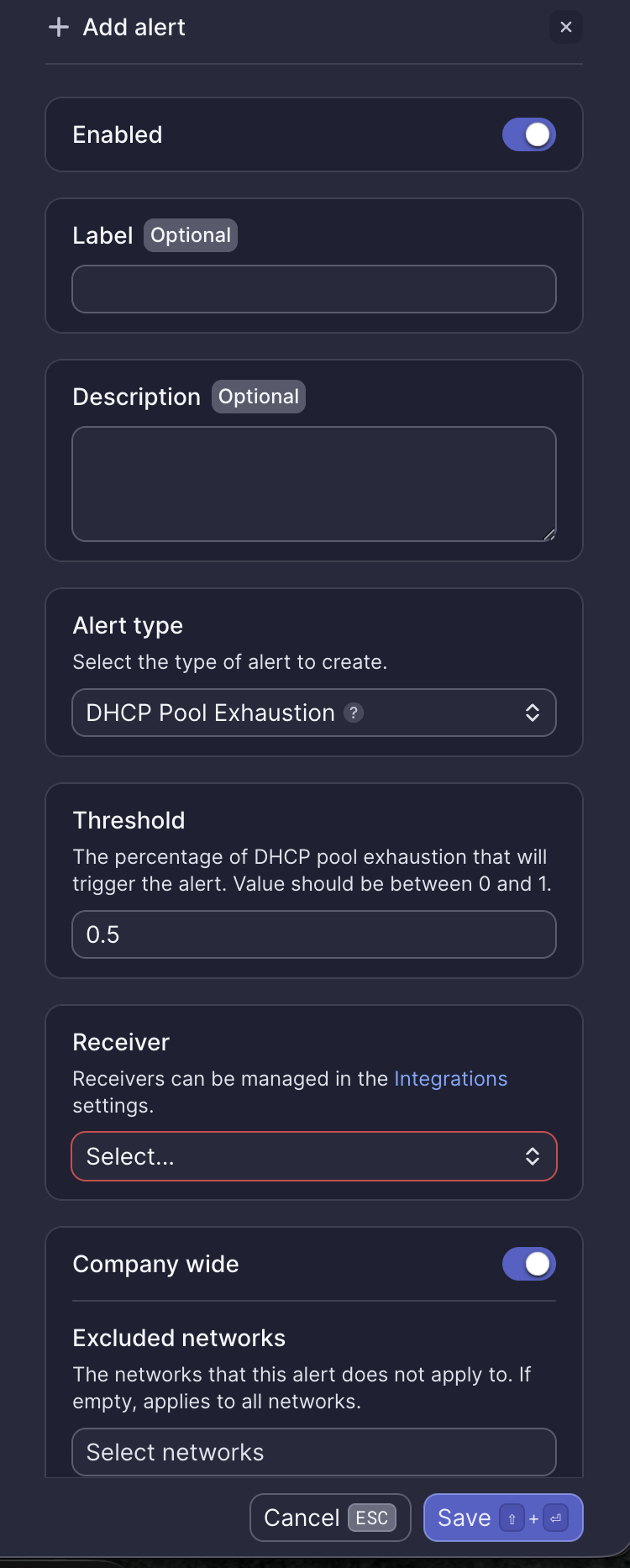
Configuration fields
| Field | Required | Description |
|---|---|---|
| Enabled | Yes | Toggle to activate or deactivate the alert (default: on) |
| Label | No | Custom name for this alert instance |
| Description | No | Additional notes about this alert |
| Alert type | Yes | Select "DHCP Pool Exhaustion" |
| Threshold | Yes | Percentage of pool usage that triggers the alert. Value between 0 and 1 (default: 0.5 = 50%) |
| Receiver | Yes | Select from configured receivers |
| Company wide | Yes | Apply to all networks or select specific networks |
| Excluded networks | No | Networks to exclude when Company wide is enabled |
Webhook event
This alert corresponds to the ALERT_DHCP_POOL_EXHAUSTION webhook event. See DHCP pool exhaustion webhook payload for integration details.
What to do when you receive this alert
Meter Support will proactively reach out shortly after this alert fires. If you haven't received an email from Support, open a ticket via the Dashboard.
Check current DHCP pool usage
- Log into the Dashboard
- Navigate to Network-wide > VLANs
- Select the affected VLAN
- Review current lease utilization under the Clients tab
Expand the DHCP scope
If possible, increase the range of IP addresses available in the DHCP scope:
- Navigate to Network-wide > VLANs
- Select the VLAN and click Edit
See VLANs for more information on editing VLAN settings.
Reduce DHCP lease time
If many devices join temporarily (e.g., guests), consider reducing the lease time so unused IPs are recycled faster:
- Navigate to Network-wide > VLANs
- Select the VLAN and click Edit
- Adjust Lease durations (hours)
Reserve IPs for critical devices only
Ensure static reservations are only for essential devices to avoid unnecessary IP consumption.
Need help?
If you run into any issues or have questions, please reach out to our Support Engineering team by opening a ticket via the Dashboard: https://dashboard.meter.com/support
Last updated by Meter Support Engineering on 01/23/2026