Adding an IPSec tunnel
Overview
This guide walks you through creating an IPSec tunnel to connect your Meter network with third-party firewalls, cloud providers, or other IPSec-compatible devices.
Who can modify this feature?
- Partner
- Company/Network Admins with write access
- Meter Support
Prerequisites
Before creating an IPSec tunnel, ensure you have:
- The public IP address of your Meter Firewall (found under Hardware > Firewalls)
- The public IP address or FQDN of the remote gateway
- A pre-shared key agreed upon with the remote site administrator
- The remote network subnets that should be accessible
- The local VLANs you want to share over the tunnel
How to add an IPSec tunnel
- Log in to the Dashboard at dashboard.meter.com
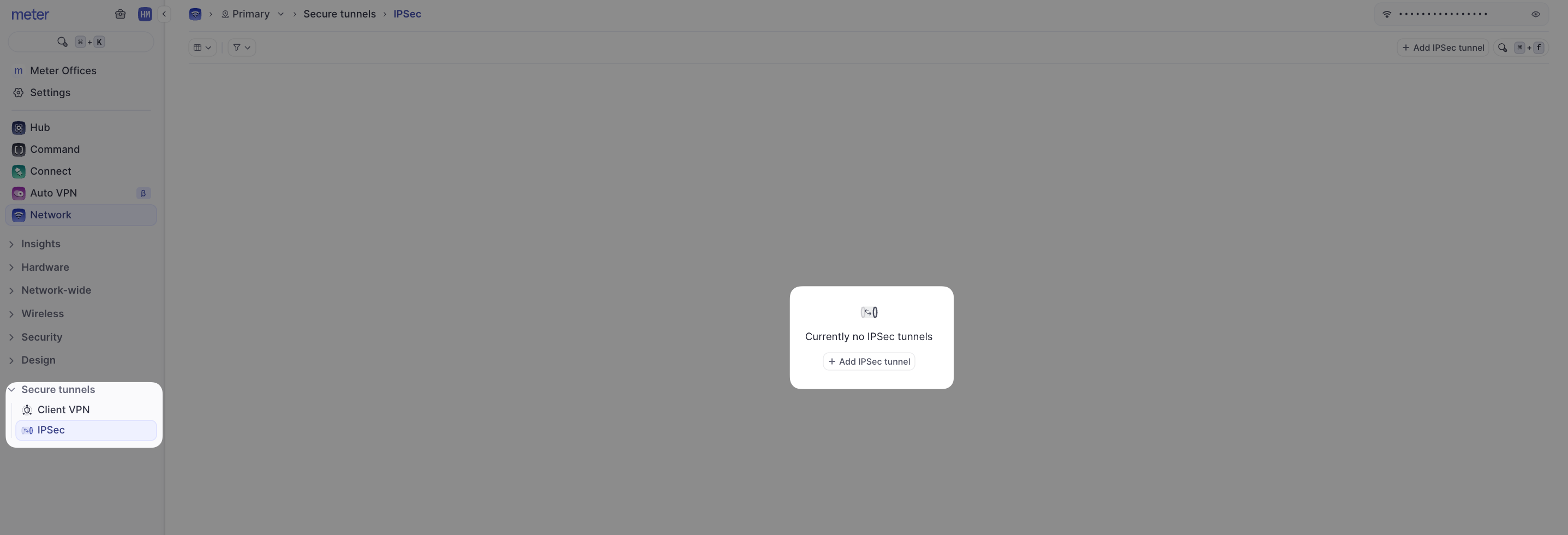
- Navigate to Secure Tunnels > IPSec
- Click Add IPSec Tunnel
A configuration panel will appear on the right-hand side of the screen.
Configuration options
Basic settings
| Setting | Description |
|---|---|
| Enable | Toggle ON to enable the IPSec tunnel |
| Name | Display name for the tunnel in the Dashboard |
| Local IP or FQDN | Public IP address of the Meter Firewall (found under Hardware > Firewalls) |
| Remote IP or FQDN | Public IP address or domain name of the remote gateway |
| Initiator | If enabled, the Meter Firewall initiates the tunnel connection. If disabled, it assumes a role automatically |
| Preshared key | Shared secret that must match on both ends of the tunnel |
Network settings
| Setting | Description |
|---|---|
| Remote Networks | Subnets on the other end of the tunnel that should be accessible |
| Local networks | VLANs you want accessible over the IPSec tunnel |
| Client VPN Bound | If enabled, users connected to the Client VPN can also traverse the IPSec tunnel |
| Bound WAN port | WAN interface for the IPSec tunnel (local IP should match the configured IP on this port) |
Advanced settings
| Setting | Description |
|---|---|
| Partner Type | Select AWS or Azure when connecting to these cloud providers. Required when multiple tunnels with the same remote subnet exist. |
| IKE Lifetime | How long the IKE security association remains valid before renegotiation (typically 8 hours) |
| Rekeying | YES: Meter initiates renegotiation. NO: Meter only responds to renegotiation requests |
| Reauthentication | YES: IKE SA is torn down and re-established at rekey. NO: IKE is only rekeyed |
Dead Peer Detection (DPD)
DPD monitors the health of the IPSec tunnel and takes action if the remote peer becomes unreachable.
| Setting | Description |
|---|---|
| DPD Action | Action to take when peer is unresponsive: Clear (delete IKE SAs), Hold (keep SAs but pause traffic), Restart (restart the tunnel) |
| DPD Timeout | How often keepalive messages are sent |
| DPD Delay | How long to wait before performing the DPD action if no response |
Tunnel types
| Type | Description | Use case |
|---|---|---|
| Policy-based | Default tunnel type. The remote end must also use a policy-based tunnel. | General site-to-site connections |
| IPIP (route-based) | Used for AWS and Azure connections. | Cloud provider connectivity |
Troubleshooting
Tunnel not establishing
- Verify the pre-shared key matches on both ends
- Confirm the local and remote IP addresses are correct
- Ensure the WAN firewall allows IPSec traffic (UDP 500, UDP 4500, and ESP protocol)
- Check that the remote gateway is reachable
Tunnel up but no traffic
- Verify local and remote network subnets are configured correctly
- Confirm firewall rules allow traffic between the tunnel subnets
- Check for overlapping IP addresses between local and remote networks
Related resources
- AutoVPN - Alternative for connecting multiple Meter networks
- Client VPN - Enable remote user access
- Firewall Rules - Manage firewall rules for tunnel traffic
Need help?
If you run into any issues or have questions, please reach out to our Support Engineering team by opening a ticket via the Dashboard: https://dashboard.meter.com/support
Last updated by Meter Support Engineering on 01/23/2026