Adding and removing VPN clients
Create VPN configurations for users and manage existing clients.
Meter's Client VPN enables remote users to securely connect to your network from anywhere, whether at home or on the road. There is no additional cost to use the VPN.
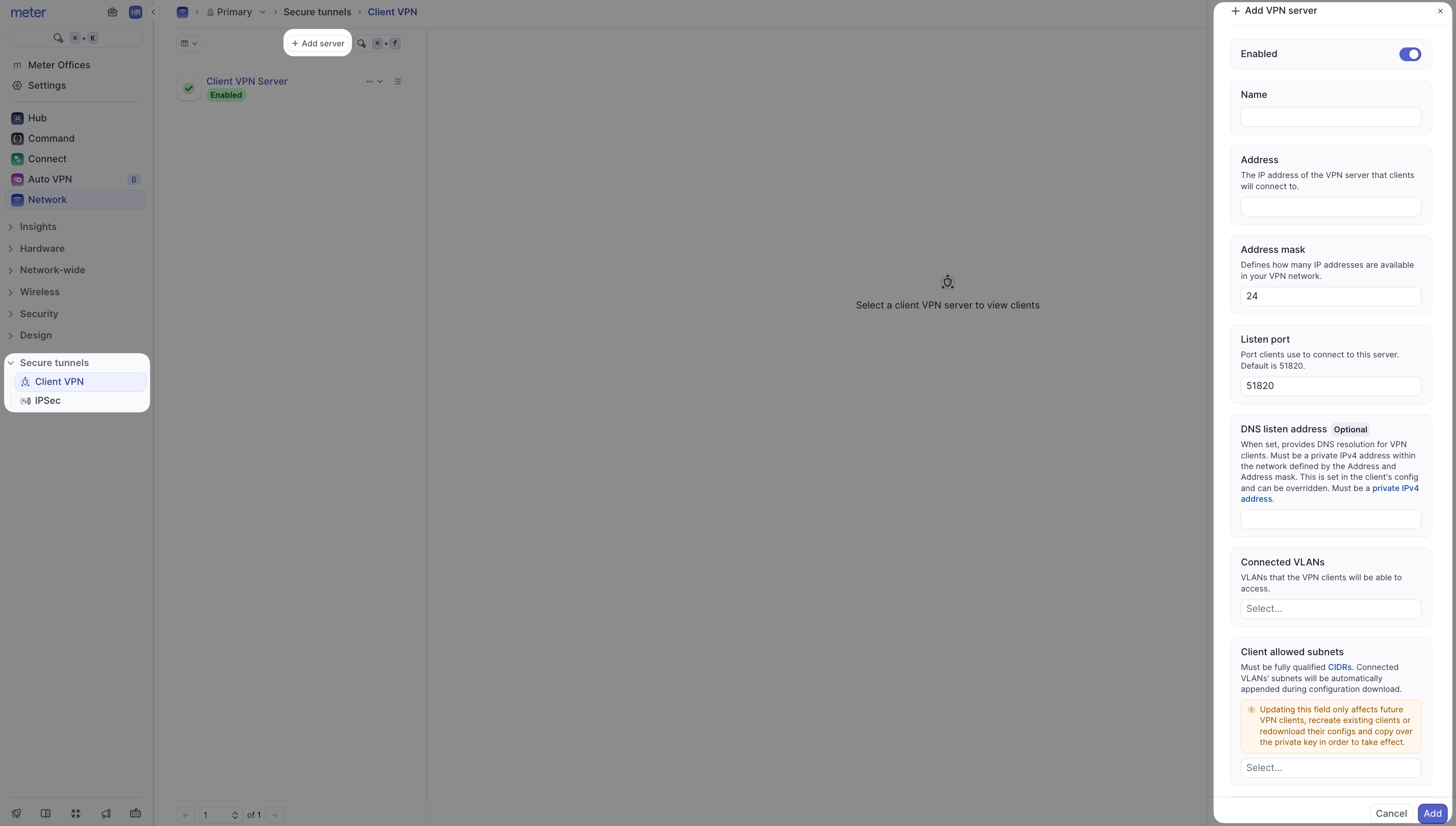
| Setting | Description | Default |
|---|---|---|
| Address | IP address of your Client VPN server. Must not overlap with existing networks (found under Network-wide > VLANs). | 10.200.0.1 |
| Address mask | Subnet mask length for the VPN server. A /24 allows up to 253 clients. | /24 |
| Listen port | Port number the VPN server listens on for incoming connections. | 51820 |
| Client DNS | IP address VPN clients use for DNS requests. If blank, defaults to the VPN server address. Must be reachable when VPN is enabled. | VPN server address |
| Connected VLANs | Local VLANs that should be accessible over the Client VPN. | — |
| Client allowed subnets | Additional subnet ranges that should be accessible (e.g., remote subnets at the other end of an IPSec tunnel). | — |
| WAN | WAN interface for Client VPN communication. | — |
| WAN failover | If ON, the Client VPN fails over to the backup WAN if the primary fails. If OFF, the VPN goes down with the selected WAN. | OFF |
Once the VPN server is configured, you can begin adding users.
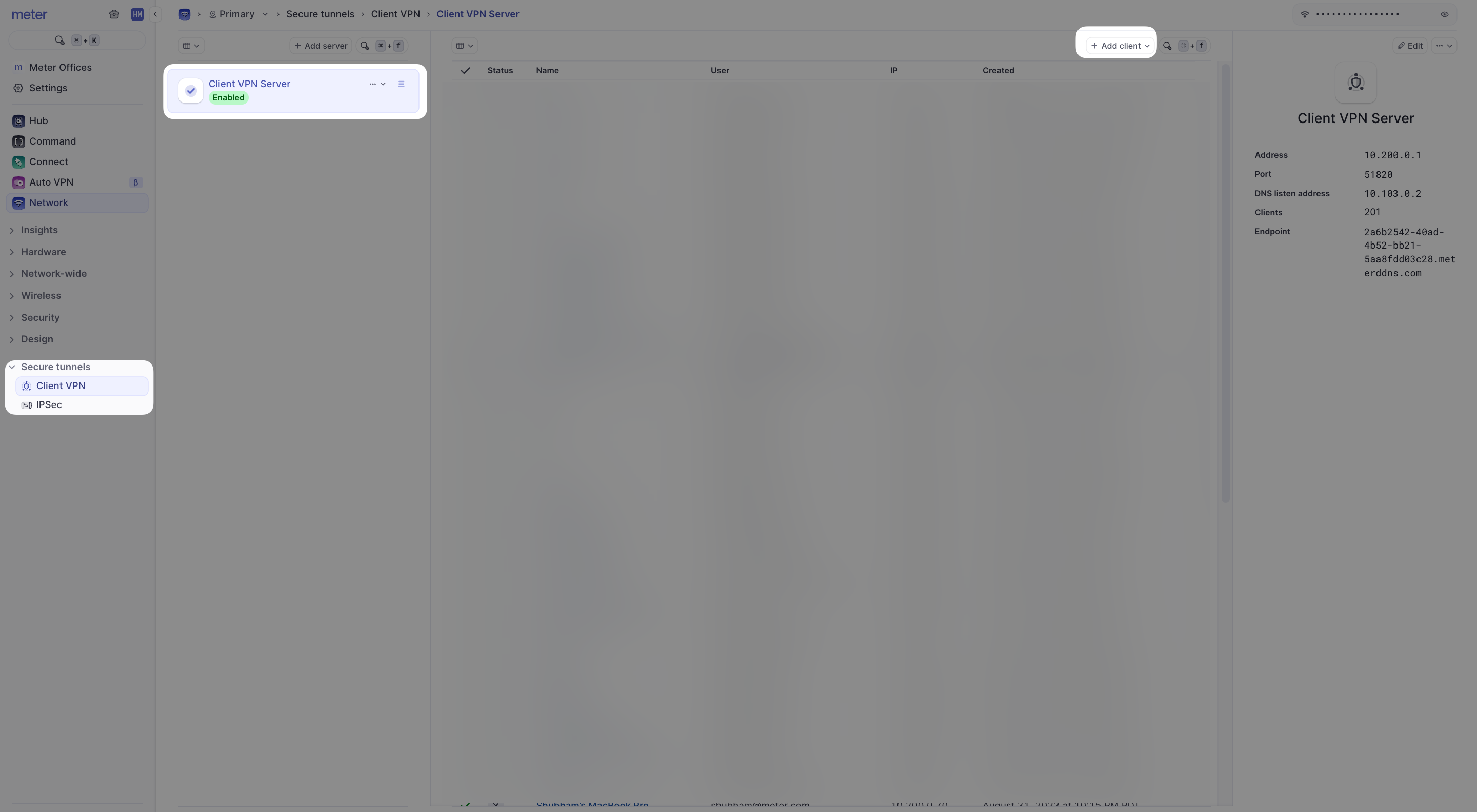
Create VPN configurations for users and manage existing clients.
Instructions for end users to configure VPN on their devices.
If you run into any issues or have questions, please reach out to our Support Engineering team by opening a ticket via the Dashboard: https://dashboard.meter.com/support
Last updated by Meter Support Engineering on 01/23/2026