Locate an access point
Who can access this feature?
- Partner
- Company/Network Admins with write and read access
- Meter Support
Overview
Having the ability to quickly locate an access point within your network can be crucial for troubleshooting, maintenance, or installation tasks. The Meter Dashboard offers an easy way to physically identify and locate your APs using its built-in LED flashing feature.
How to flash the LEDs
- Log in at dashboard.meter.com
- Navigate to Hardware > Access Points. This section will display all the APs associated with the network
- From the list of APs, choose the one you want to locate by clicking on it. This will open up the AP's Insights page
- On the AP's Insights page, click on the three horizontal dots (the Actions menu) on the top right side
- Within the Actions menu, select Flash LEDs. This will trigger the AP's LEDs to flash for 10 seconds, making it easier to identify the physical device on your premises
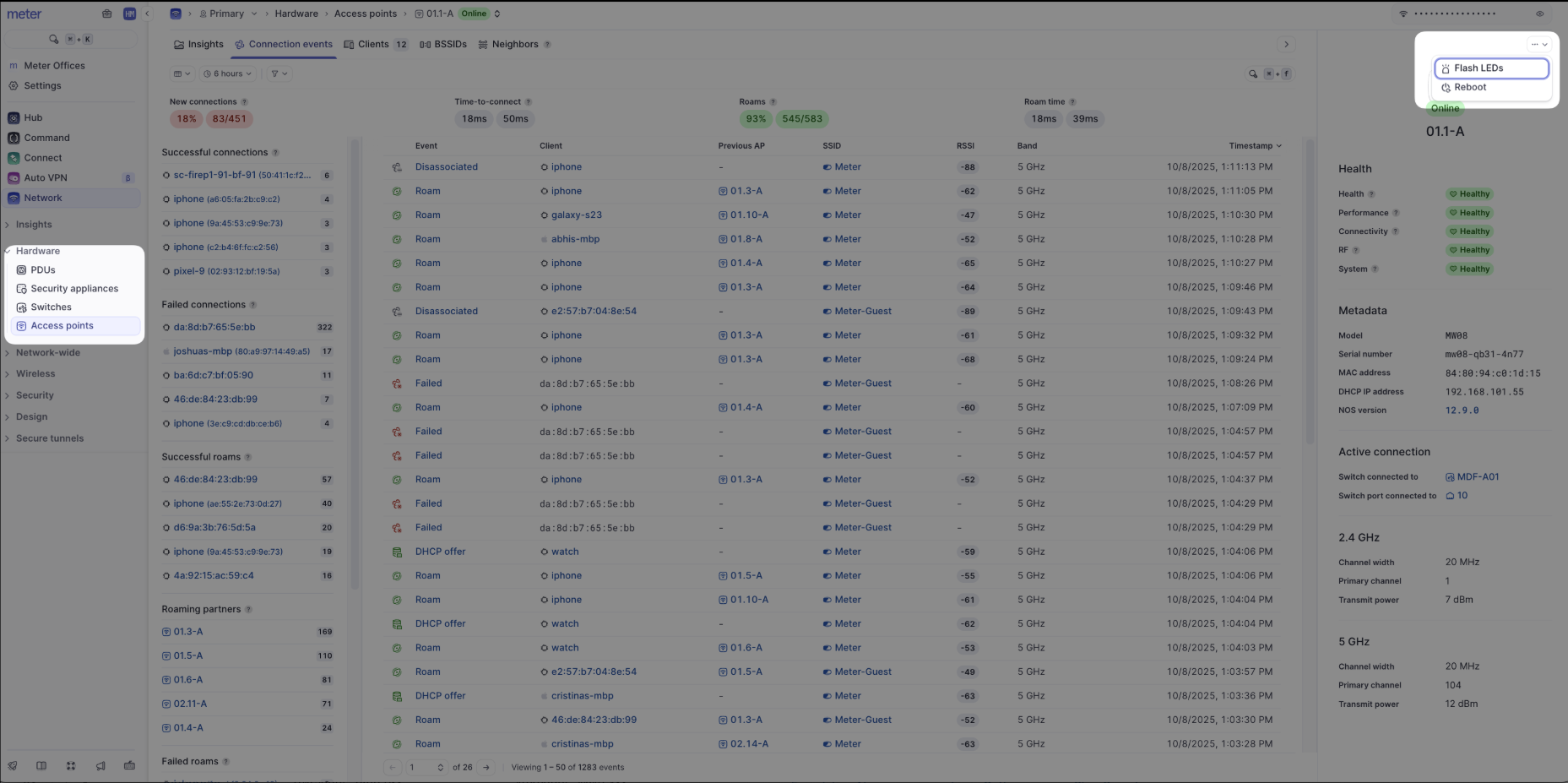
- If you need to locate additional APs, repeat the steps for each AP
By following these steps, you can quickly and easily locate access points within your environment, saving time and effort during network troubleshooting or maintenance tasks.
Need help?
If you run into any issues or have questions, please reach out to our Support Engineering team by opening a ticket via the Dashboard: https://dashboard.meter.com/support
Last updated by Meter Support Engineering on 01/23/2026