Who can modify this feature?
- Partner
- Company/Network Admins with write and read access
- Meter Support
Overview
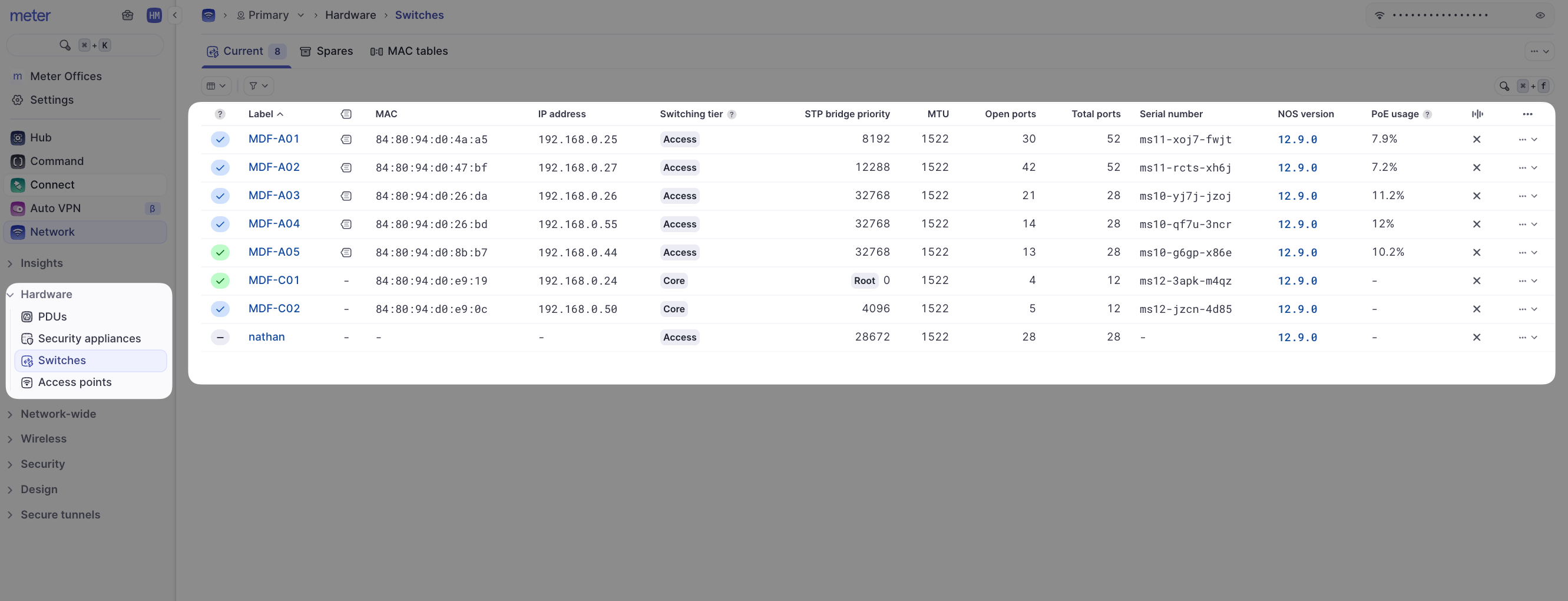
To view a Meter switch's port configuration, click Hardware > Switches and click the desired switch.
Then click Ports at the top of the page:
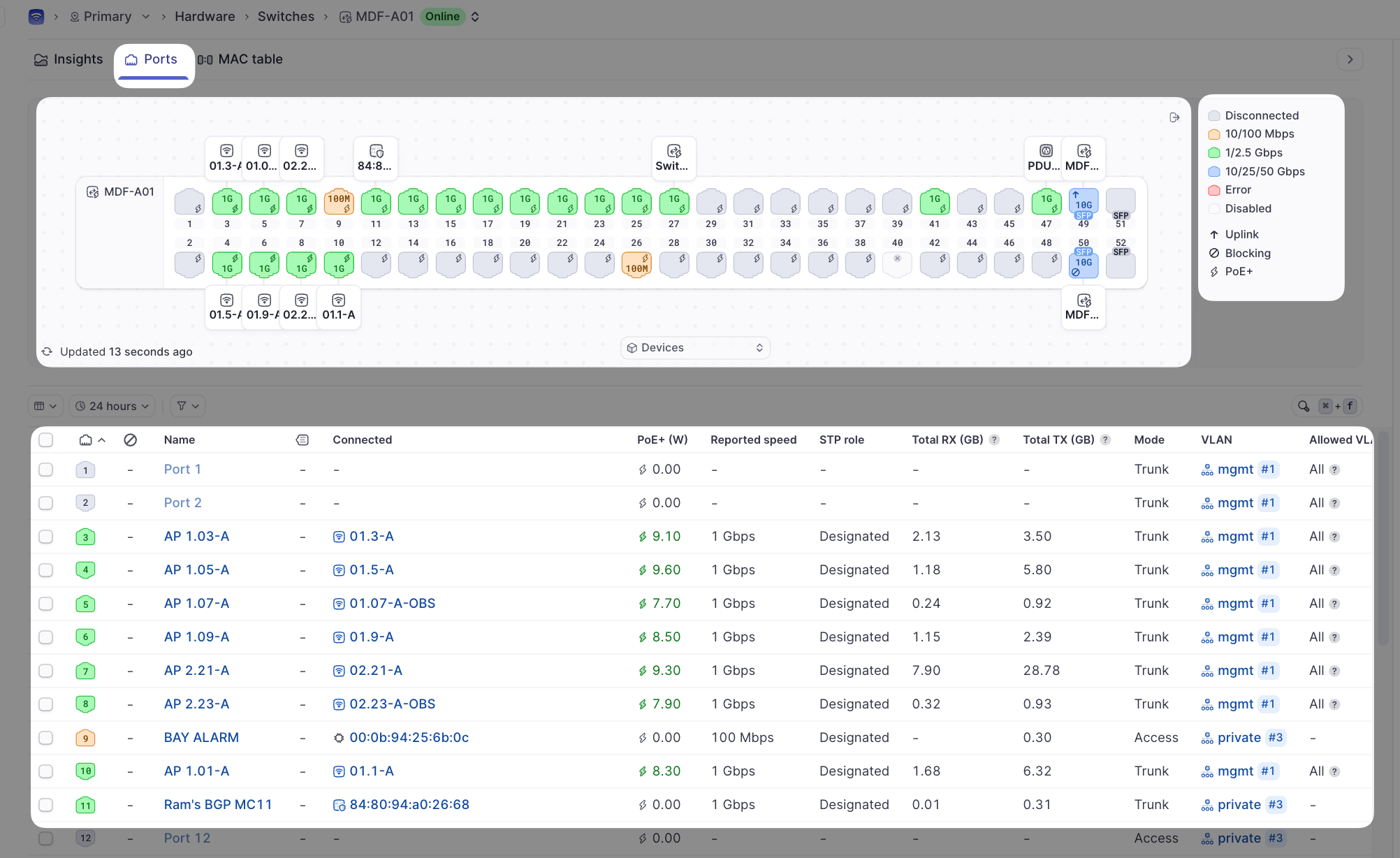
Page components
- The actions and edit menu for the switch (described on the Switches overview)
- Port mapping as viewed looking at the front of the switch
- The key for the port map
- Port list and information
- Drop-down menu to switch between each switch's ports page
Port information
| Column | Description |
|---|---|
| Name | This is the label on the port (see How to edit switch ports). If this label is blank, the port number is the default label |
| Connected | Shows the name of the Meter device connected to the port. The directly connected MAC addresses will be displayed if not a Meter device |
| PoE+ (W) | Current PoE consumption of the attached device |
| Reported Speed | The negotiated link speed on the switch port |
| STP role | Current STP role of the switch port |
| Total RX (GB) | Data received on the port since boot |
| Total TX (GB) | Data sent on the port since boot |
| Mode | Trunk port or Access Port |
| VLAN | Native VLAN for the port |
| Allowed VLAN IDs | Allowed tagged VLANs if a trunk port |
Port details panel
Clicking on a switch port name will reveal the menu on the right-hand side of the screen:
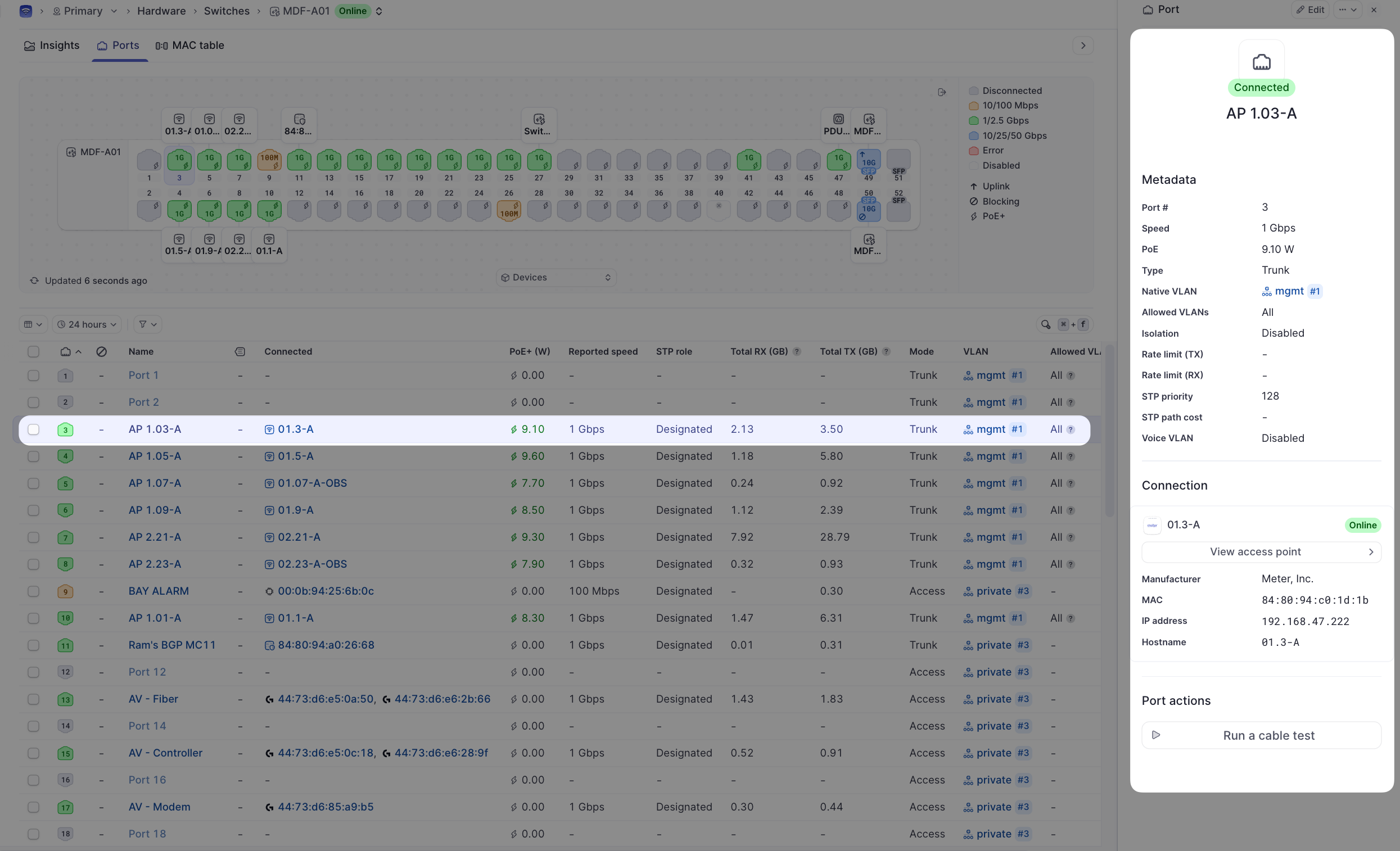
Click on the Edit button to modify the port-specific settings. See How to edit switch ports.
At the bottom of this menu, there will be a View switch or View access point button if connected to another Meter device. This will direct the browser to the Insights page for that device. If connected to a client device, there will be a View client button that will direct the browser to the client's Insights page.
The Run a cable test button can also be used to test the attached cable for opens or shorts in the twisted pairs.
Related resources
- Edit switch ports - Configure port settings
- Configuration for Meter devices - Set up ports for Meter hardware
Need help?
If you run into any issues or have questions, please reach out to our Support Engineering team by opening a ticket via the Dashboard: https://dashboard.meter.com/support
Last updated by Meter Support Engineering on 01/23/2026