Who can access this feature?
- Partner
- Meter Support
Overview
ACS is a feature that helps optimize your Wi-Fi network by scanning the environment and selecting the least congested 5 GHz channel for each access point. This reduces interference from neighboring Wi-Fi networks and improves overall performance.
Currently, ACS only applies to the 5 GHz band.
When to run ACS
You should consider running ACS when you notice consistently high AP utilization.
For example:
- If APs report idle utilization of over 30%
- Idle utilization is the percentage of time an access point's radio is not transmitting data or receiving signals, but is still occupied by overhead like beacons, other APs' transmissions (co-channel interference, adjacent channel interference), or non-Wi-Fi devices
Running ACS allows APs to switch to cleaner channels, helping to reduce congestion.
How to run ACS
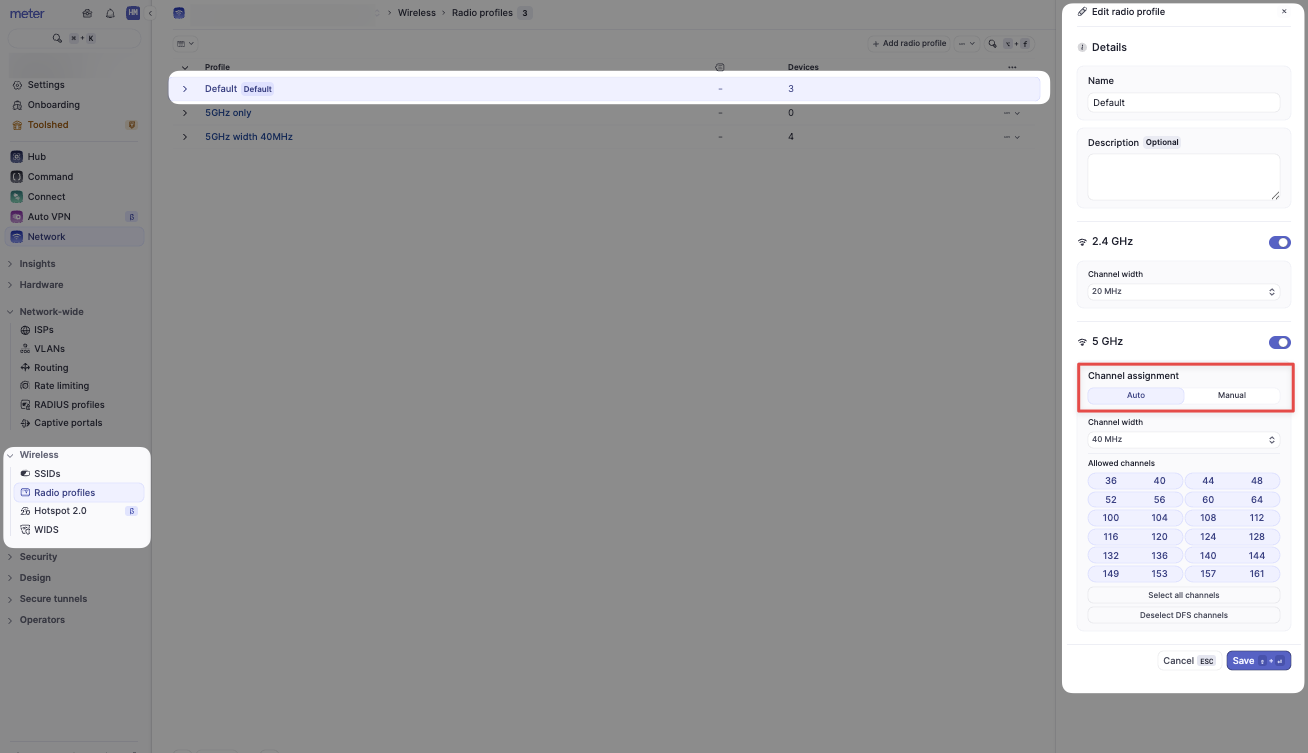
Step 1: Confirm radio profiles are set to Auto
- In the Dashboard, navigate to Wireless > Radio Profiles
- Select the radio profile you're using
- Under 5 GHz > Channel Assignment, ensure it is set to Auto
- Click Save
Repeat this step for all radio profiles that have 5 GHz enabled.
Step 2: Run ACS
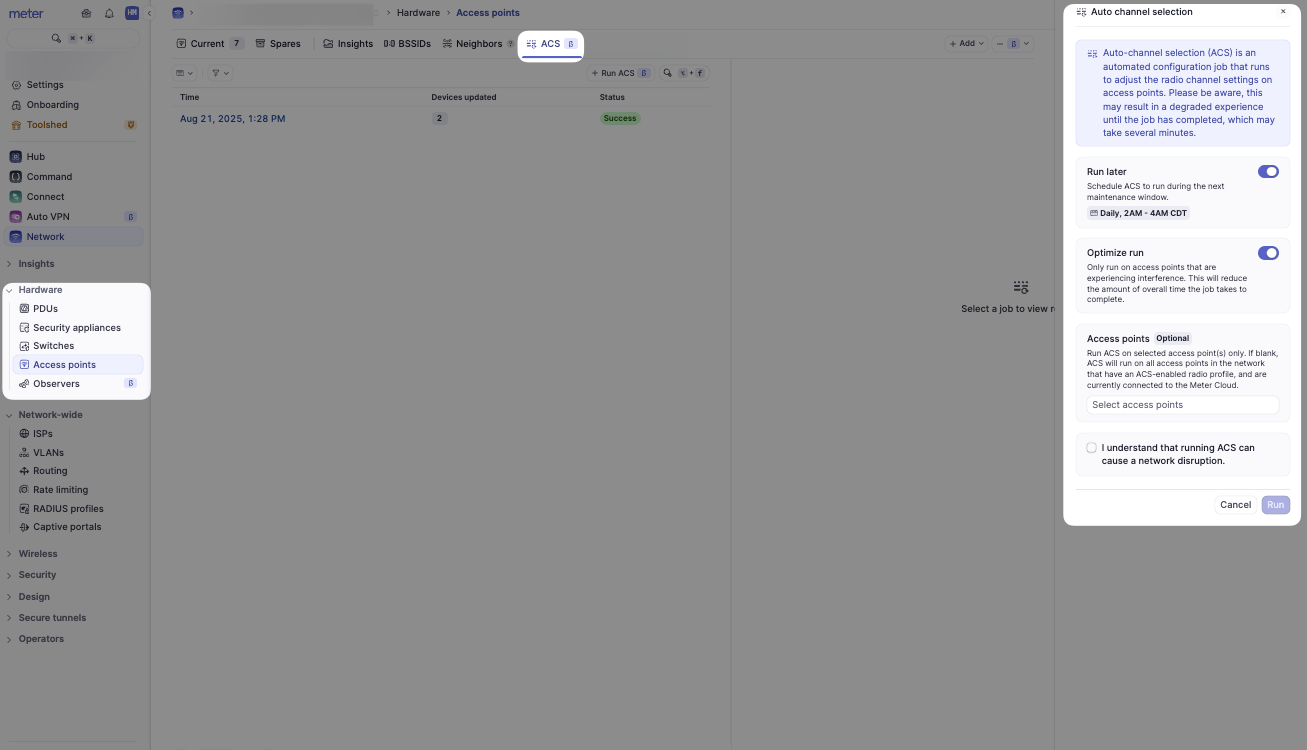
- Go to Hardware > Access Points
- Click the ACS tab at the top
- Here, you will see:
- The history of ACS runs (if any have been performed)
- Any new runs you initiate
- Click Run ACS and choose your options:
- Run Later - Schedule ACS to run during your defined maintenance window
- To update your maintenance window, see Maintenance window settings
- Optimize Run - Toggle on if you want ACS to run only on APs experiencing high home-channel interference
- This option is recommended for large networks with many APs to improve runtime
- Access Points:
- Select specific APs if you only want ACS on a subset of APs
- Leave blank to run ACS network-wide on all online APs
- Check the box: "I understand that running ACS can cause a network disruption."
- Click Run
Step 3: Monitor the run
-
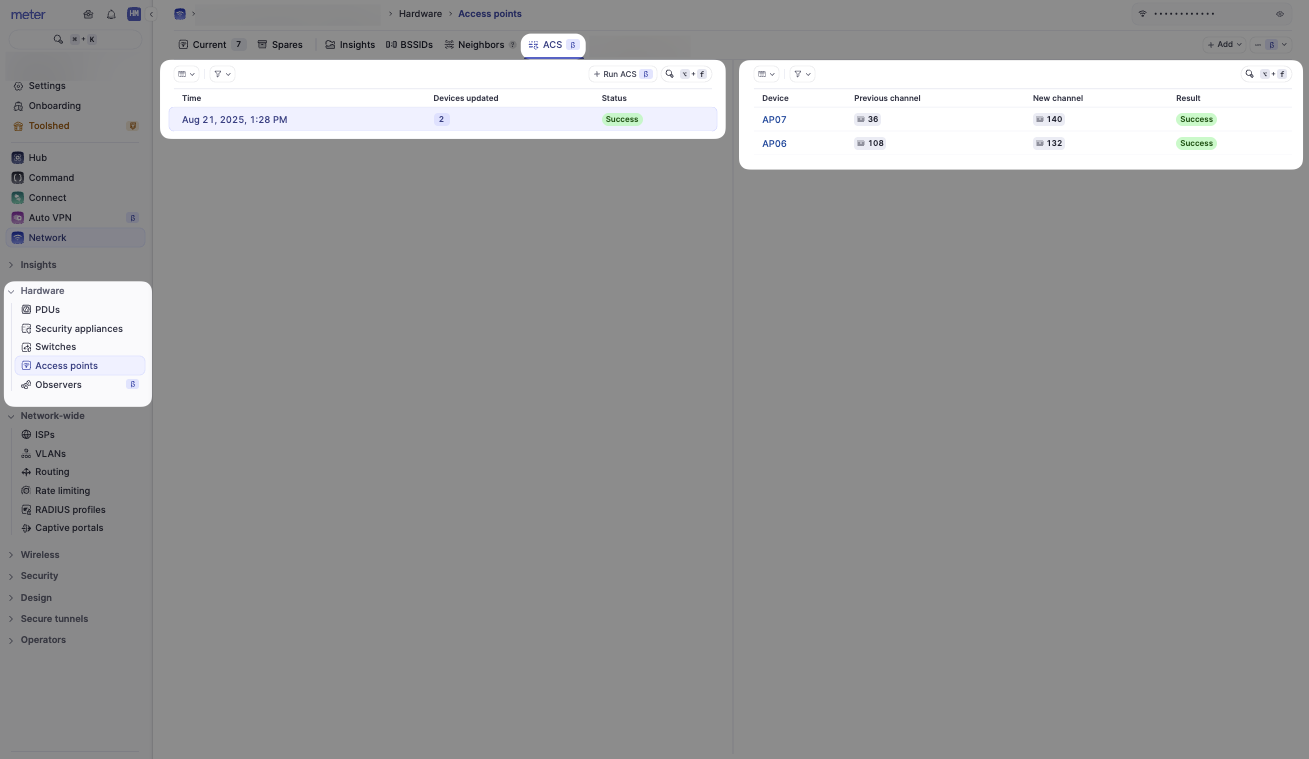
Once ACS starts, the run will appear in the history list on the left
-
Clicking the event will display an estimated completion time
Need help?
If you run into any issues or have questions, please reach out to our Support Engineering team by opening a ticket via the Dashboard: https://dashboard.meter.com/support
Last updated by Meter Support Engineering on 01/23/2026