Who can modify this feature?
- Partner
- Company/Network Admins with write and read access
- Meter Support
Overview
To edit a switch port on a Meter Switch, access the Ports page. On this page, click on the name of the port you would like to edit.
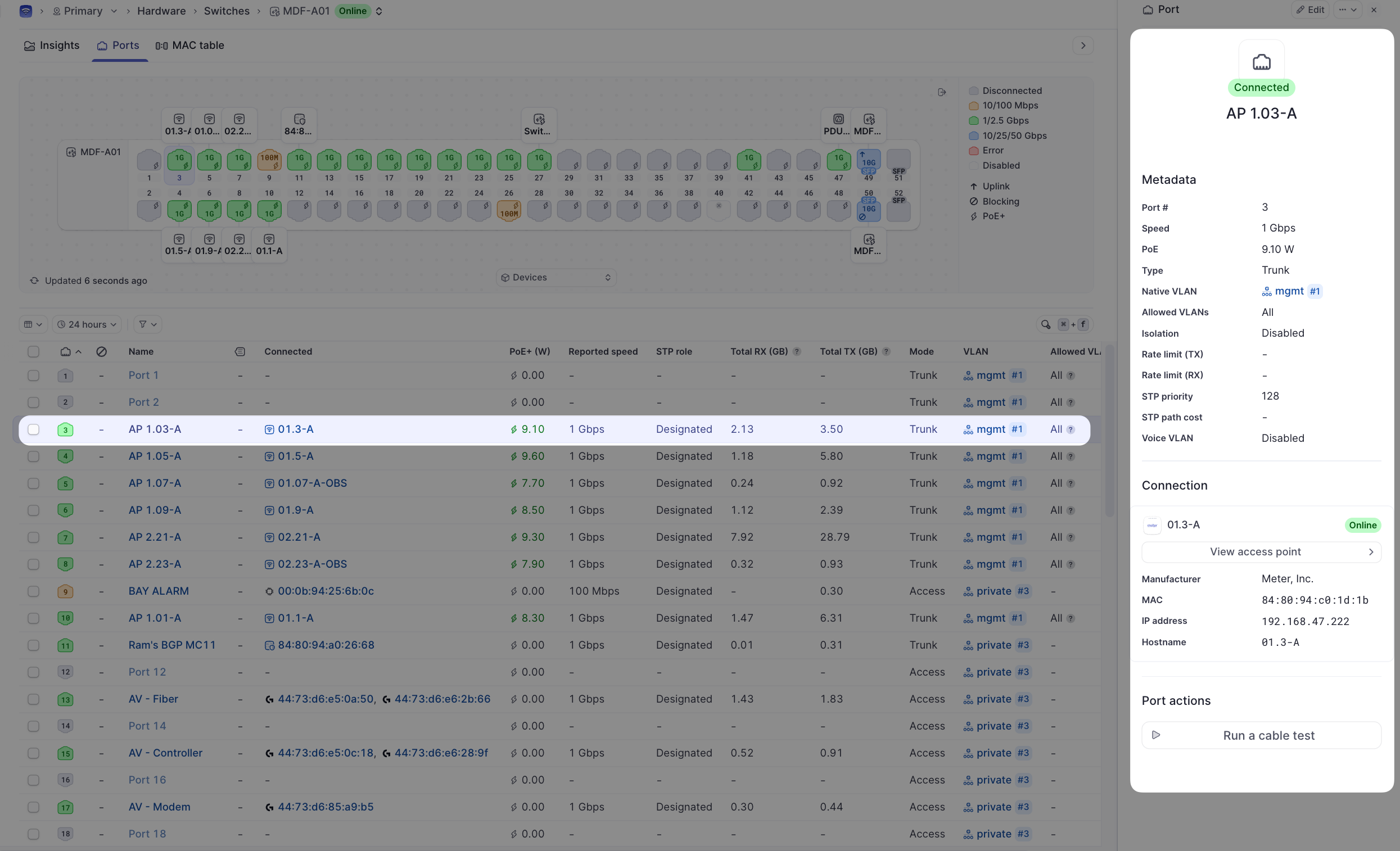
This will open a new menu on the right-hand side of the screen where port-specific configurations can be enabled/disabled or modified.
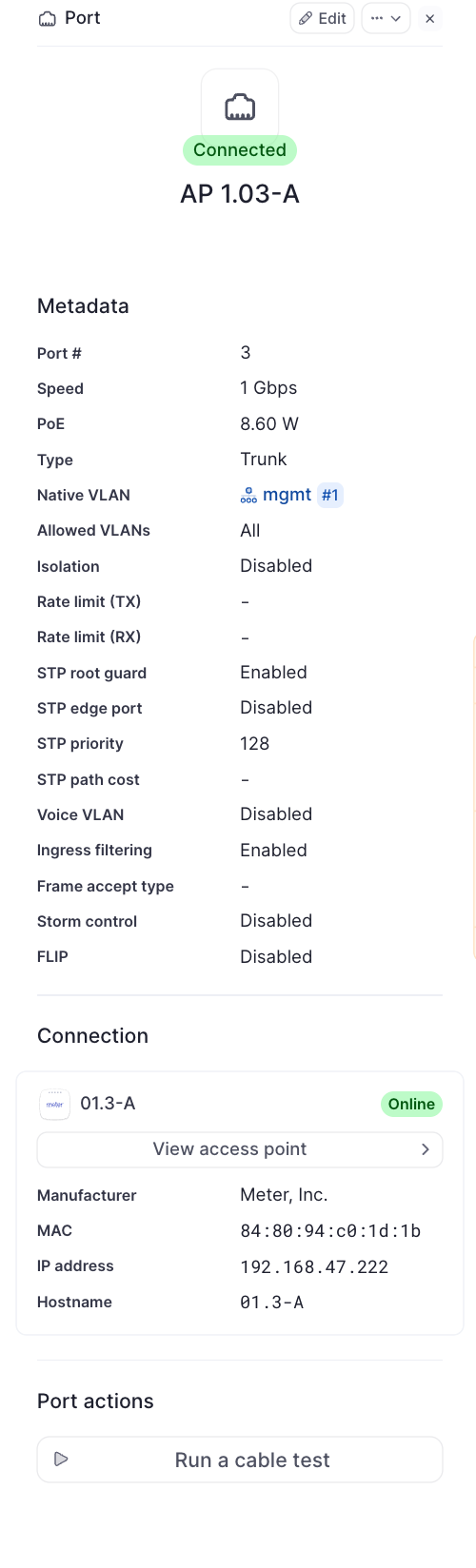
Port settings
| Setting | Description |
|---|---|
| Actions | Can be used to cycle the data link, or PoE+ on the port |
| Enable | If toggled OFF, the port will be disabled. If toggled ON, the port will be enabled |
| Description | (Optional) Can be used to add notes about connected devices and/or the port's configuration |
| PoE+ | If toggled ON, the port will serve PoE+ (802.3at). If toggled OFF, the port will not serve PoE |
| Speed | Can be used to explicitly set link speed. Auto is usually always the correct setting |
| Trunk/Access | Set the port to either be a Trunk or an Access Port |
| Native VLAN | Set the native VLAN ID for the port (untagged VLAN) |
| Allowed VLANs | If a Trunk port, choose which VLANs should be allowed |
| Isolation | This will isolate the client from any other access port |

Ensure to save changes after changing settings.
Important note about switch port configuration
The Meter deployments team specifically configures ports in a way so that the network is operating as intended with the required specifications provided to Meter before the network goes live.
If you believe you need to change any switch port configurations and are unsure of your exact needs, please reach out to the Meter Support team for assistance.
Need help?
If you run into any issues or have questions, please reach out to our Support Engineering team by opening a ticket via the Dashboard: https://dashboard.meter.com/support
Last updated by Meter Support Engineering on 01/23/2026