Who can access this feature?
- Partner
- Company/Network Admins with write and read access
- Meter Support
Overview
The Neighbors page shows other networks from the perspective of the selected AP. This page can show potentially interfering networks in the vicinity.
To view the Neighbors page of an access point, log into the Meter Dashboard and navigate to Hardware > Access Points and click the name of an access point.
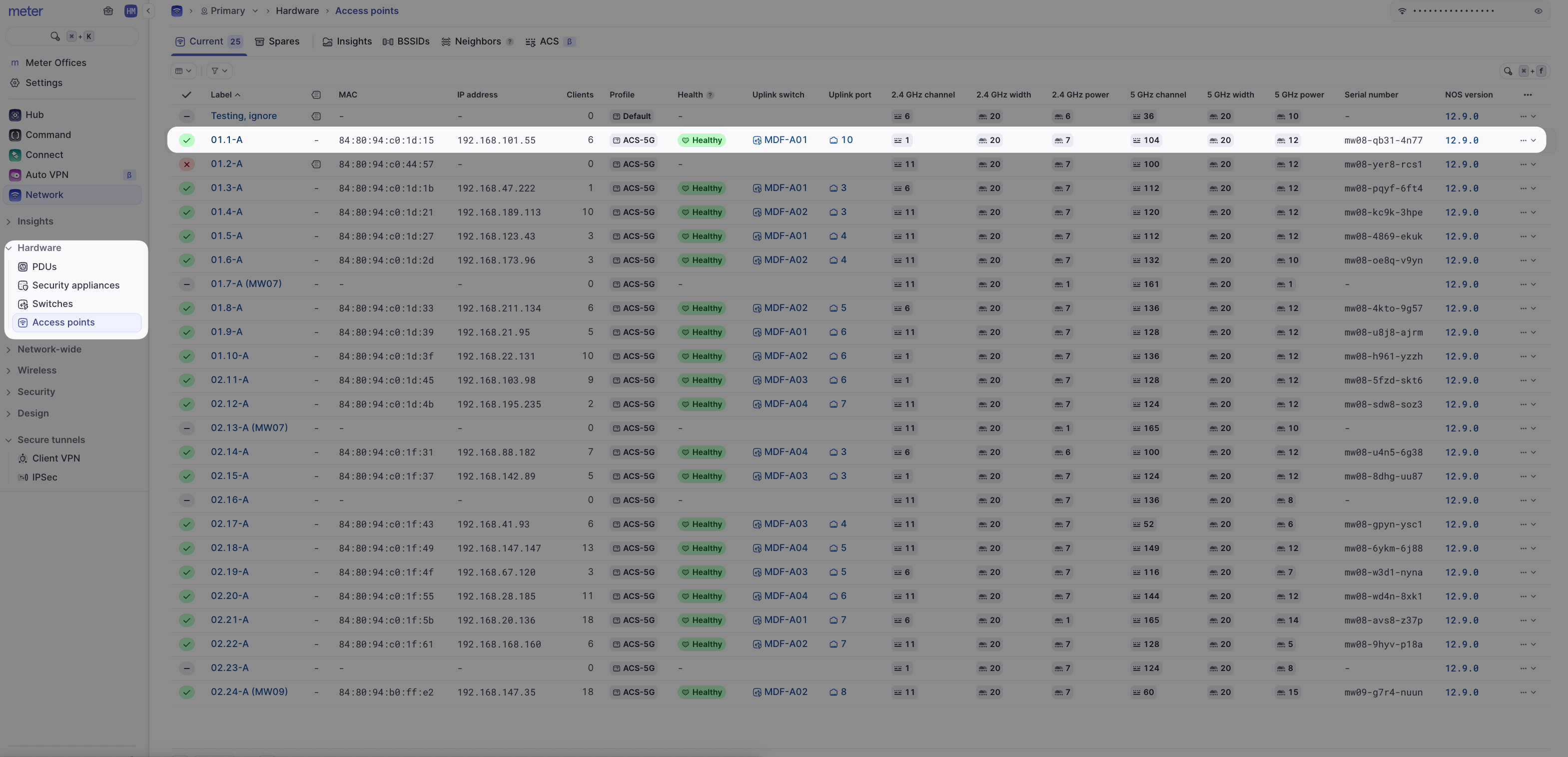
Then click the Neighbors tab. The Neighbors page displays:
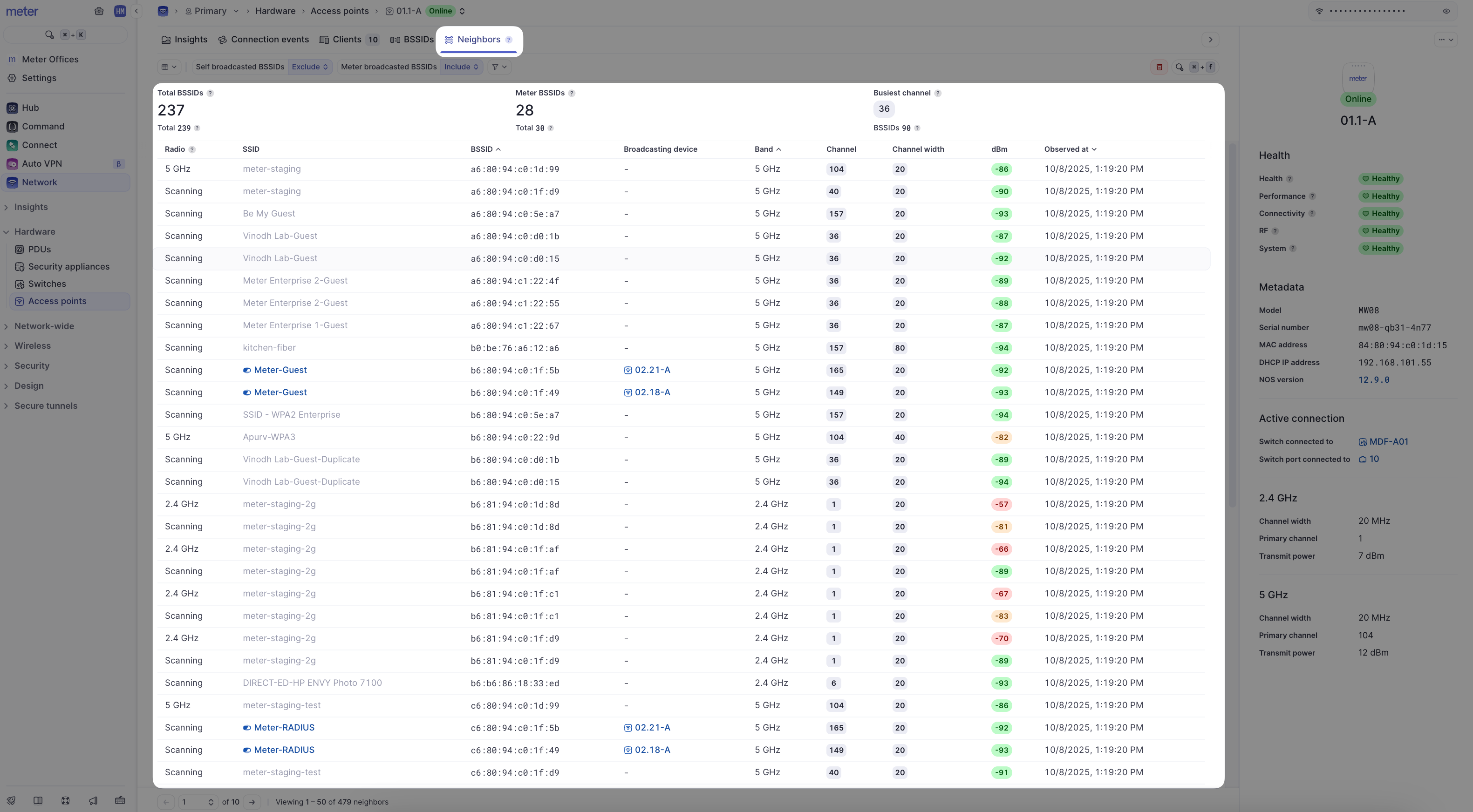
- Filters - By default, these include filtering by self-broadcasted BSSIDs or Meter-broadcasted BSSIDs
- Total BSSIDs - Counts all BSSIDs including ones from Meter APs
- Meter BSSIDs - Only includes BSSIDs from Meter APs
- Busiest channel - Shows the channel with the most BSSIDs observed
BSSID information
Each row represents a BSSID. A BSSID is a unique MAC address for each network and radio combination that an AP broadcasts.
| Column | Description |
|---|---|
| Radio | The radio used to scan for the BSSID (2.4/5 GHz, or Scanning) |
| SSID | The SSID broadcasting for this BSSID |
| BSSID | The unique BSSID MAC address |
| Broadcasting device | Which AP in the network is broadcasting this BSSID |
| Band | The band of the BSSID |
| Channel | The channel used by the BSSID |
| Channel width | The channel width of the BSSID |
| dBm | The BSSID power level seen by the AP |
| Observed at | The most recent timestamp the AP observed the BSSID |
Signal strength indicators
| Level | dBm range |
|---|---|
| Low | < -85 dBm |
| Medium | -85 dBm to -75 dBm |
| High (Red) | > -75 dBm |
The totals below Total BSSIDs, Meter BSSIDs, and Busiest channel show BSSID counts without filters applied.
What to look for
Potential interference
BSSIDs on the same channel as the AP with higher signal strength can cause interference for clients on that AP. Meter defines higher signal strength as above -75 dBm or the red color.
Need help?
If you run into any issues or have questions, please reach out to our Support Engineering team by opening a ticket via the Dashboard: https://dashboard.meter.com/support
Last updated by Meter Support Engineering on 01/23/2026