Adding and removing VPN clients
Overview
This guide covers how to create VPN configurations for users and how to remove existing VPN clients from your network.
Who can modify this feature?
- Partner
- Company/Network Admins with write access
- Meter Support
Prerequisites
- The VPN server must already be running on the Meter Firewall (see Setting up Client VPN)
What is a VPN?
A Virtual Private Network (VPN) adds security and privacy when connecting to web-based services and sites. A VPN hides the user's actual public IP address and "tunnels" traffic between the user's device and the remote server.
Meter uses a secure VPN to create an encrypted connection between your device and your network.
How to create a VPN configuration
- Log in to the Dashboard at dashboard.meter.com
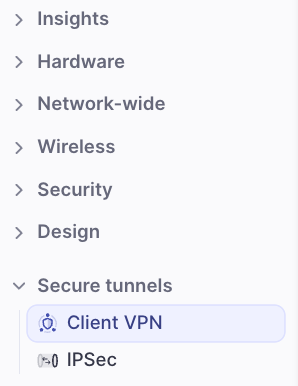
- Navigate to Secure Tunnels > Client VPN
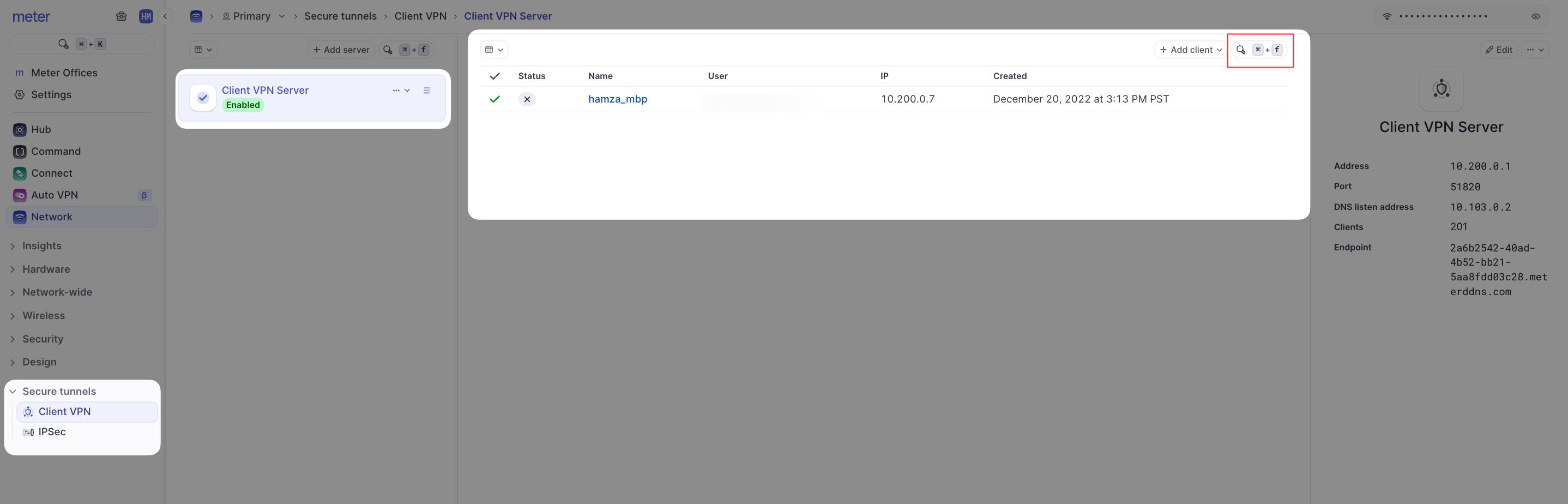
- Click Add VPN Client on the right-hand side
- Enter the following:
- Email address of the user you're creating the VPN configuration for
- Name for identifying this VPN profile in the Dashboard
- Download the .conf file (the filename includes the user's name for reference)
- Click Done
- Securely share the .conf file with the user along with this guide: Setting up your client device
Your VPN configuration is now complete.
How to remove VPN clients
- Log in to the Dashboard at dashboard.meter.com
- Navigate to Secure Tunnels > Client VPN
- Click on the arrow to expand the list of VPN clients
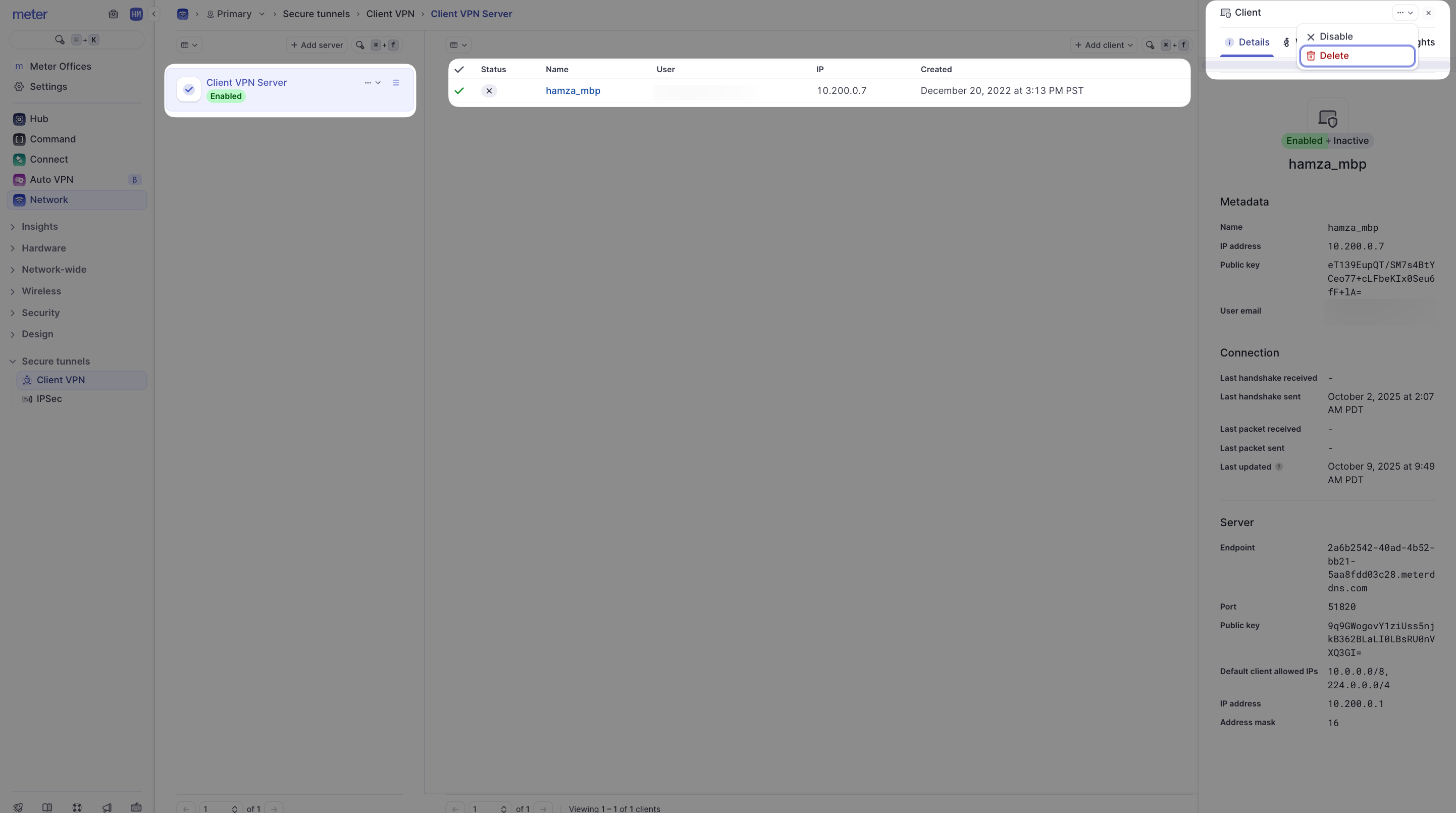
- Click on the user you want to remove (their details appear in the drawer on the right)
- Click the three horizontal dots in the top-right corner
- Click Delete
The VPN client is now removed.
Related resources
- Setting up Client VPN - Configure the VPN server
- Setting up your client device - End-user device setup instructions
- Managing Dashboard users - Manage user access and roles
Need help?
If you run into any issues or have questions, please reach out to our Support Engineering team by opening a ticket via the Dashboard: https://dashboard.meter.com/support
Last updated by Meter Support Engineering on 01/23/2026