Status LEDs (MW08)
LED states
The LEDs show the state of different AP services.
- LED 1 shows the AP power state
- LED 2 shows the state of LAN 1
- LED 3 shows the state of LAN 2
- LED 4 shows the state of the 2.4 GHz radio
- LED 5 shows the state of the 5 GHz radio
- LED 6 shows the state of the BLE radio
LED 1 - AP power
| State | Description |
|---|---|
| Green LED solid | AP is fully powered |
| LED off | AP has insufficient power to boot |
LED 2 - LAN 1
| State | Description |
|---|---|
| Blue LED blinking | The LAN1 port is operational and communicating |
| LED off | The LAN1 port is off |
LED 3 - LAN 2
| State | Description |
|---|---|
| Blue LED blinking | The LAN2 port is operational and communicating |
| LED off | The LAN2 port is off |
LED 4 - 2.4 GHz radio
| State | Description |
|---|---|
| Blue LED solid | The 2.4 GHz radio is operational, but not transmitting traffic |
| Blue LED blinking | The 2.4 GHz radio is operational and communicating |
| LED off | The 2.4 GHz radio is off |
LED 5 - 5 GHz radio
| State | Description |
|---|---|
| Blue LED solid | The 5 GHz radio is operational, but not transmitting traffic |
| Blue LED blinking | The 5 GHz radio is operational and communicating |
| LED off | The 5 GHz radio is off |
LED 6 - BLE radio
The BLE radio LED is currently not used.
Special states
| State | Description |
|---|---|
| All LEDs blinking - Alternating LED 3/5 blinking blue, then LED 3/5 blinking blue and LED 2/4 solid blue | The AP has power and is attempting to reach the Meter Cloud |
| LEDs 2-5 blinking blue in unison | Flash LEDs feature is in use |
| All LEDs off | The AP is either powered off completely or has the LEDs disabled |
To learn more about the Flash LED feature, see Locate an access point.
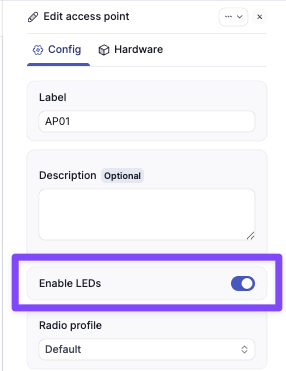
APs plugged in with all LEDs off may have their LEDs disabled in Dashboard. To check the Enable LEDs configuration:
- Navigate to Hardware > Access Points, click on the specific AP
- Click the Edit button for the AP
- In the Edit access point page, check Enable LEDs as desired:
Need help?
If you run into any issues or have questions, please reach out to our Support Engineering team by opening a ticket via the Dashboard: https://dashboard.meter.com/support
Last updated by Meter Support Engineering on 01/23/2026