Move devices between networks
Who can modify this feature?
- Partner
- Company Admin
- Meter Support
Overview
This guide shows how to move devices between networks in Dashboard. The process is the same for PDUs, Firewalls, Switches, and Access Points.
How to move devices between networks
This example shows the process for switches. Start in the network where the device is currently deployed.
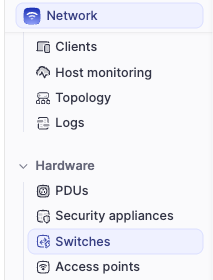
- Navigate to Hardware > [PDUs | Firewalls | Switches | Access Points]
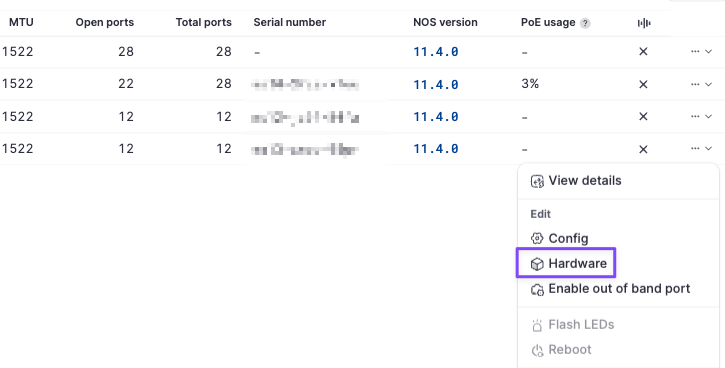
- Locate the device to move. In the last column "...", click the button for Actions. Click on Hardware
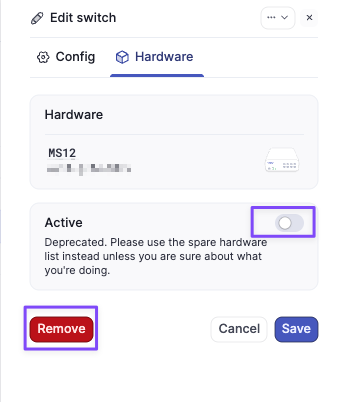
- In the Hardware tab, set Active to off and then click Remove
-
Change to the target network for the device move. Navigate to Hardware > [PDUs | Firewalls | Switches | Access Points]
-
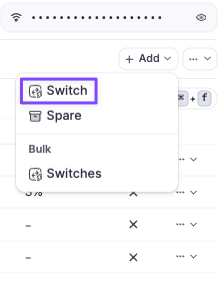
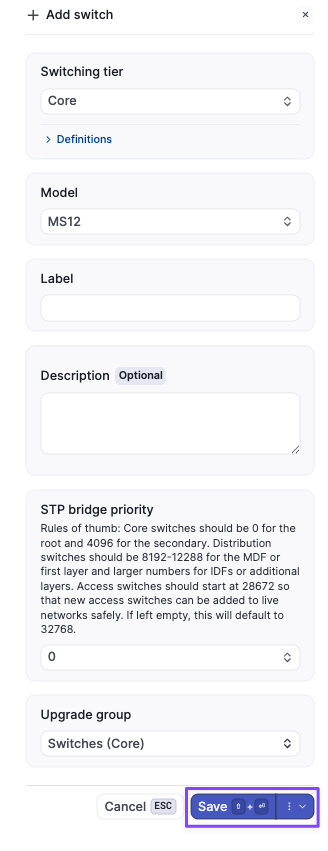
Click the Add button toward the upper-right corner. Then click [Power distribution unit | Firewall | Switch | Access Point]
- Fill out the device information as needed and then click Save
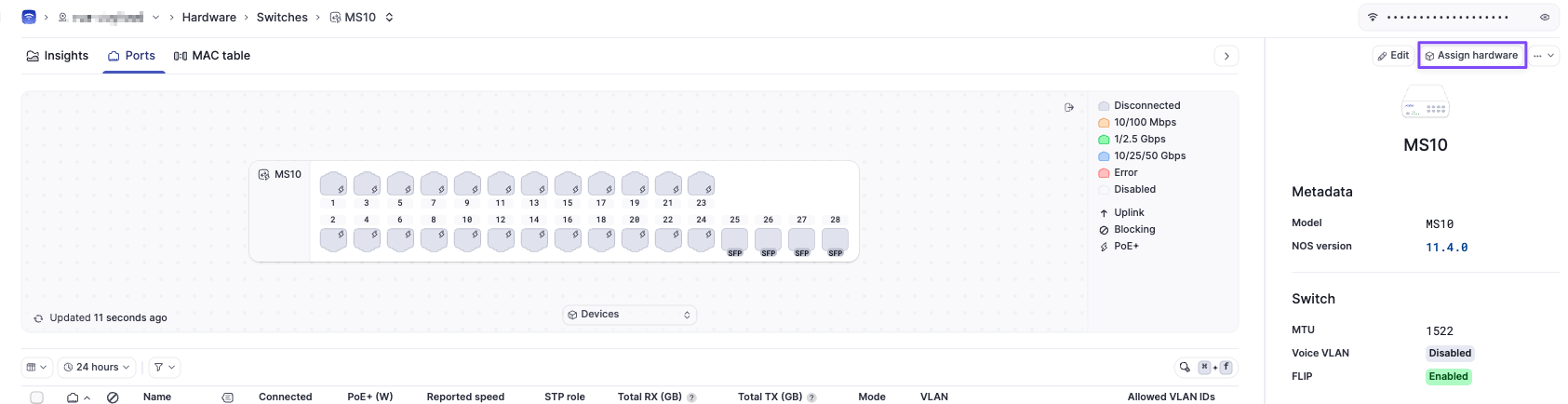
- Click on the new device and then click on Assign Hardware
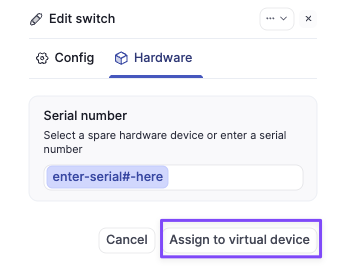
- Click on Hardware. Enter the device serial number. Then click Assign to virtual device
- The device should now come online in the new network once connected
Need help?
If you run into any issues or have questions, please reach out to our Support Engineering team by opening a ticket via the Dashboard: https://dashboard.meter.com/support
Last updated by Meter Support Engineering on 01/23/2026